
Local SEO for WordPress is about setting up your WordPress site so it supports your visibility in local searches and Google Maps. Your Google Business Profile does much of the work in the map results, but your website matters too: Google uses it to understand what you do and where, and customers check it before they call. WordPress gives you all the tools you need, but they're spread across themes, plugins and settings. This guide brings local SEO for WordPress together in eight practical steps.
How local search works
Google says local results are mainly based on relevance, distance and popularity. Your website contributes to relevance (what you offer and where) and popularity (links, mentions and reputation). Distance you can't change. So local SEO for WordPress focuses on making your services and locations crystal clear, and on earning trust.
Step 1: Get the WordPress basics right
Before anything local, make sure the site can be found: search engine visibility switched on under Settings, Reading, a clean permalink structure, an SEO plugin installed and Search Console connected. Our WordPress SEO checklist covers the full setup.
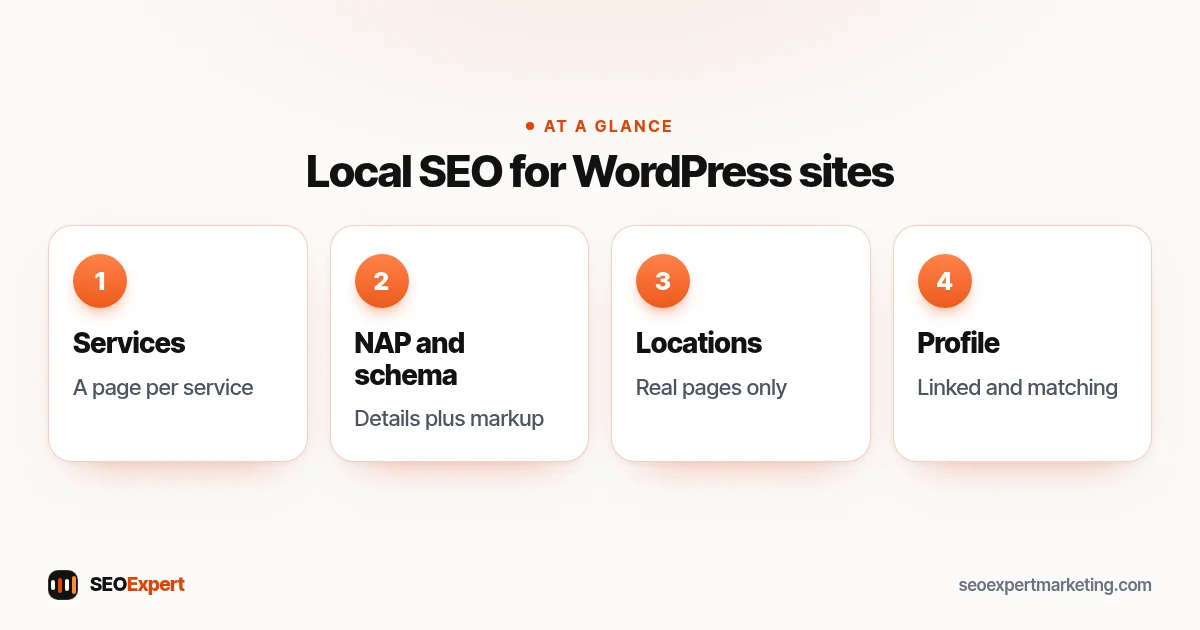
The four basics to check before local SEO for WordPress:

Step 2: Create a page for each main service
Service pages are the core of local SEO for WordPress sites.
One page per service, each explaining what's included, prices or price guidance, the area you cover and how to book. In WordPress, use a clear page hierarchy, such as /services/boiler-repair/, and link each service page from the menu or a services overview.
Step 3: Show your name, address and phone number
Put your business name, address and phone number (NAP) in the footer or contact page as real text, not an image, exactly as they appear on your Google Business Profile. Make the phone number tappable on mobile. If you're a service-area business that hides its address on Google, show the areas you serve instead.
Step 4: Add LocalBusiness structured data
Structured data helps search engines read your business details reliably. Google's LocalBusiness structured data documentation lists the properties to include, such as name, address, phone, opening hours and geo coordinates. Most major SEO plugins can add this, either built in or through a local SEO module or add-on. Check the result with the Rich Results Test.
Step 5: Build location pages only where they're real
If you serve several towns or have several branches, a page for each can help. With WordPress it's easy to create dozens of near-identical town pages, and that's exactly the mistake to avoid: Google's spam policies treat them as doorway pages. Each location page should have something genuinely local, such as the team at that branch, jobs done in the area, local opening hours or travel times. Our guide to local SEO keywords helps decide which areas deserve a page.
Step 6: Embed a map and directions
Embed a Google map of your location on the contact page, and on each branch page if you have several. Add simple directions, parking information and opening hours. Keep embeds light so they don't slow the page on mobile; some sites load the map only when a visitor taps to open it.
Step 7: Show reviews honestly
Link to your Google reviews and show a few genuine recent ones on your site. Avoid plugins that add review star markup about your own business to every page; Google doesn't show self-serving review stars for local businesses, and fake or selected reviews damage trust. Ask every happy customer for a review on your Google profile instead.
Step 8: Connect your site and Google Business Profile
Link your profile to the most relevant page, usually the home page for a single location or the branch page for multi-location businesses. Make sure the categories and services on your profile match the pages on your site, and that the details are identical. Our Google Business Profile optimization page explains the profile side.
Local SEO for WordPress: page templates
If you have several branches, a consistent template for location pages saves time and keeps details accurate. Include the same building blocks on each page, filled with information that's genuinely different: the address and phone number, opening hours, a map, photos of that branch, the team, services available there and directions or parking. In WordPress you can build this as a reusable block pattern or a page builder template. The template is a structure, not the content; resist the temptation to copy the text and swap the town name, because that turns real location pages into doorway pages.
Measuring local SEO for WordPress
Track enquiries from local search, not just rankings. In Google Analytics, mark phone clicks, form sends and direction clicks as key events. In Search Console, filter the Performance report by your service and location pages to see which local searches bring impressions and clicks. On your Google Business Profile, check calls, direction requests and website clicks each month. Together these show whether local SEO for WordPress is paying off.
WordPress plugins for local SEO
| Need | What to look for |
|---|---|
| SEO basics and schema | A main SEO plugin with local business settings (built in or add-on) |
| Forms | A lightweight form plugin with spam protection |
| Speed | Caching and image optimization |
| Maps | A simple embed, ideally loaded on demand |
Fewer plugins is usually better. Every plugin needs updates and can slow the site, so add only what you'll use.
Common local SEO for WordPress mistakes
- "Discourage search engines" left ticked after launch.
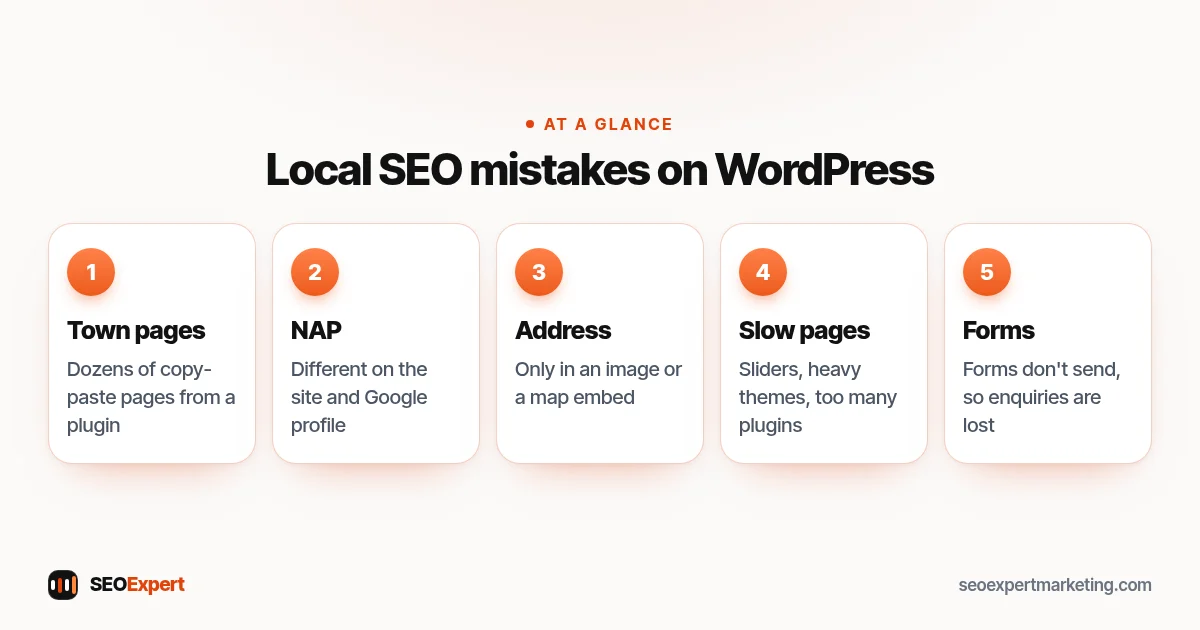
- Dozens of copy-paste town pages generated by a plugin.
- NAP different on the site and the Google profile.
- Address only in an image or a map embed.
- Slow pages because of sliders, heavy themes and too many plugins.
- Contact forms that don't send, so enquiries are lost.
Five common local SEO for WordPress mistakes to avoid:
Example: a WordPress setup for a two-branch salon
Here's an illustrative example, not a client result. A hair salon has branches in two towns and a single WordPress page listing both addresses. The local SEO for WordPress plan: a page for each branch with its own address, phone number, opening hours, map, team photos and a short note about parking; LocalBusiness schema for each branch through the SEO plugin; each Google Business Profile linked to its branch page; and service pages for cuts, color and treatments linked from both branch pages. A small change in structure that makes each branch clearly relevant to its own town.
Get help with local SEO for WordPress
Our WordPress SEO services include local setup, schema and speed, and our local SEO services cover the profile, reviews and citations. Send us your site address on WhatsApp for a free review.
Local SEO for WordPress: quick answers
What's the best plugin for local SEO on WordPress?
Most major SEO plugins handle the basics, including LocalBusiness schema, through built-in settings or a local add-on. Choose one main SEO plugin and avoid overlapping tools.
Do I need location pages on my WordPress site?
Only if you serve several areas or have several branches, and only where each page has genuinely local information. Copy-paste town pages can do harm.
Should I add review stars to my WordPress site?
Show genuine reviews for visitors, but don't add self-serving review markup about your own business; Google doesn't show those stars for local businesses.
Does my website affect my Google Maps ranking?
Yes. Google uses your website to understand your services and location, and a clear, trusted site supports both relevance and popularity.