
Knowing how to add a business to Google Maps is the first step in local SEO: until your business has a verified Google Business Profile, you can't control what customers see in Maps, add photos or reply to reviews. Adding it is free and takes about 15 minutes, plus the time Google needs to verify you. This guide walks through every step, explains the choices that matter (address or service area, name, category) and covers what to do if your business is already on Maps or doesn't show up after verification.
Before you add a business to Google Maps
Not every business qualifies. Before you add a business to Google Maps, check eligibility: Google's guidelines say only businesses that make in-person contact with customers during their stated hours, at their location or at the customer's, can have a profile. Online-only businesses aren't eligible. Have these ready:
- A Google Account you'll keep, ideally one tied to your business email rather than a staff member's personal account.
- Your exact business name, as on your signage and paperwork.
- Your address, or the areas you serve if you go to customers.
- Your main phone number, website, opening hours and the category that best describes you.
How to add a business to Google Maps, step by step
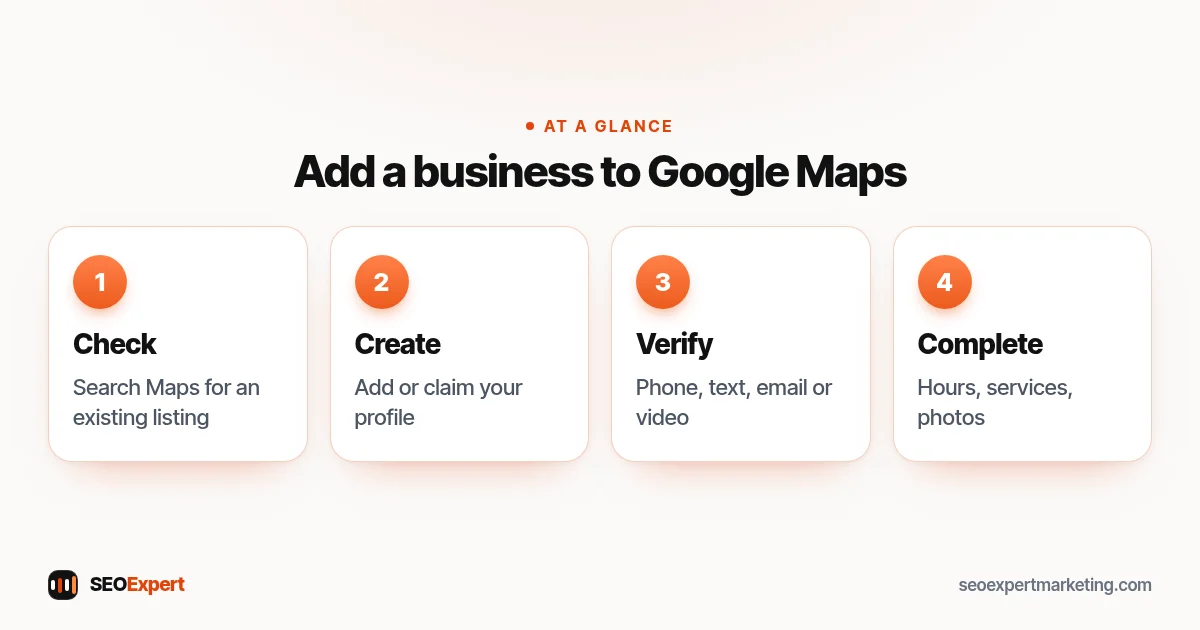
Google's help page to add or claim your Business Profile gives the official steps. In short:
- Check that you're not already on Maps. Search your business name and town on Google Maps. If a listing exists, claim it instead of creating a duplicate (see below).
- Go to business.google.com/add and select "Add your business to Google".
- Enter your business name. Use your real name only, with no added keywords or locations.
- Choose your primary category. Pick the most specific one that describes your main service, such as "Plumber" rather than "Contractor". You can add more categories later.
- Add a location or a service area. If customers visit you, add your address. If you travel to customers, say you don't have a location customers visit and list the areas you serve instead.
- Add your phone number and website.
- Verify your business using the option Google offers.
Verifying your business
Google's guide to verify your business on Google explains that the available methods are chosen automatically and depend on your business type, public information, region and hours. Options can include a phone call or text message, email, a video recording, a live video call or a postcard by mail, and sometimes more than one step is needed. Google recommends video verification when it's offered.
A few tips that save time:
- For phone verification, make sure someone can answer the business number directly; automated phone menus won't receive the code.
- For video, show your signage or vehicle, your tools or equipment and proof you manage the business, such as keys or a till, in one continuous recording.
- Don't edit your name, address or category while verification is pending.
If your business is already on Google Maps
Sometimes you don't need to add a business to Google Maps at all, because it's already there. Customers or Google itself sometimes create a listing before you do. Search for it on Maps, open it and select "Claim this business", then "Manage now", and follow the verification steps. If someone else has already verified the profile, for example a former employee or agency, you can request ownership from them through the same process.
Choosing your address or service area
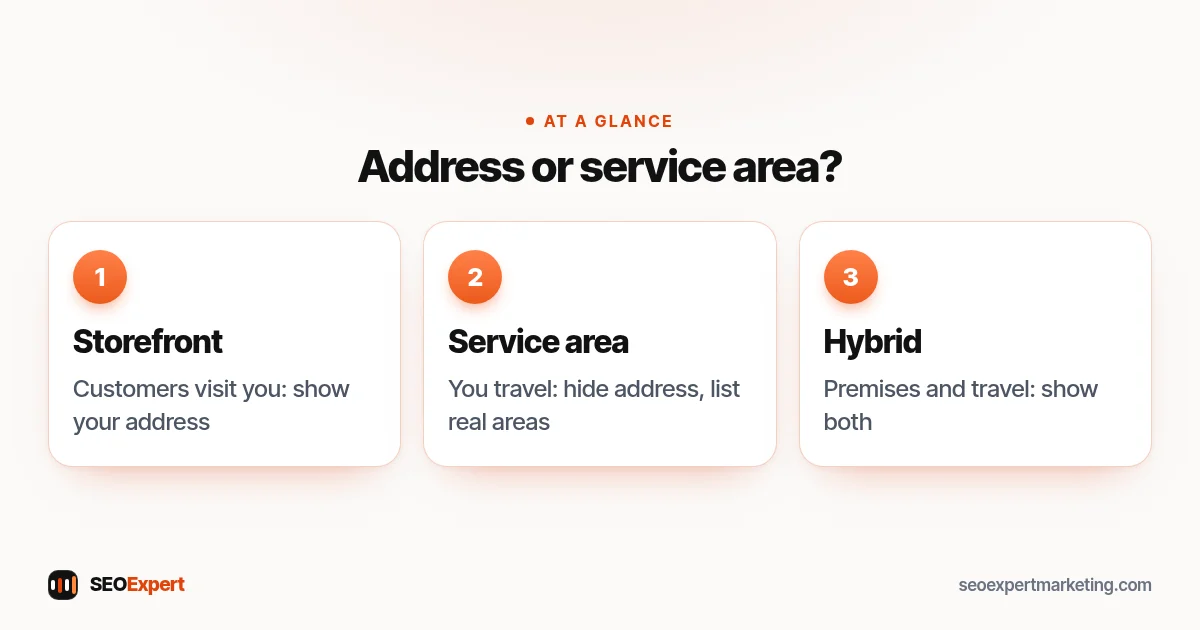
- Storefront businesses (shops, restaurants, clinics, offices customers visit): show your address.
- Service-area businesses (plumbers, cleaners, electricians, mobile services): hide the address and list the towns or areas you serve. Keep the list realistic.
- Hybrid businesses that have premises customers visit and also travel to customers can show both.
Never use a virtual office, a mailbox service or someone else's address to appear in another town. Google's guidelines for representing your business don't allow it, and profiles can be suspended.
At a glance: which location setting to choose when you add a business to Google Maps.
After verification: complete your profile
When you add a business to Google Maps, verification is only half the job. A new listing with only a name and phone number rarely appears for competitive searches. Once verified, fill in:
- Opening hours, including holiday hours.
- Services or products, with short descriptions and prices if you publish them.
- A clear business description in plain language.
- At least ten real photos: exterior, interior or vehicle, team and recent work.
- Attributes that apply, such as wheelchair access or online appointments.
- A link to the most relevant page on your website.
Then ask your first customers for reviews. Our guide to Google Business Profile optimization covers each section in detail.
Common mistakes when you add a business to Google Maps
- Creating a second listing instead of claiming the existing one, which splits reviews and confuses customers.
- Adding keywords or towns to the business name, which can lead to suspension.
- Using a personal Google Account that a staff member later takes with them.
- Choosing a broad category such as "Contractor" when a specific one such as "Roofing contractor" exists.
- Listing dozens of service areas you rarely visit.
- Leaving the profile half-finished after verification.
Why your business might not show on Google Maps
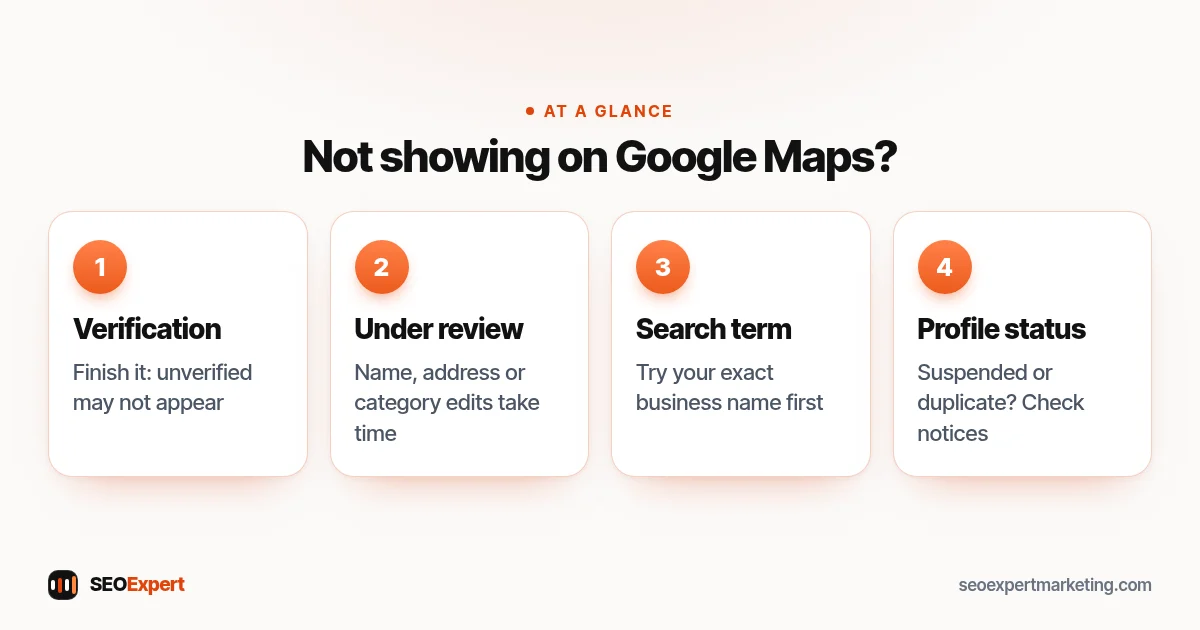
- Verification isn't finished: unverified profiles may not appear, or appear with limited information.
- Recent changes are under review: edits to the name, address or category can take time to appear.
- You're searching for a broad term: try your exact business name first. For searches like "plumber", Google weighs relevance, distance and prominence, so a new profile may not appear straight away.
- The profile is suspended or a duplicate exists: check your Business Profile for notices.
If you add a business to Google Maps and it still doesn't show, check these four things:
Adding your business to other maps
Once you add a business to Google Maps, repeat the process elsewhere. Customers also use Apple Maps on iPhones and Bing Maps. Claim your business on Apple Business Connect and Bing Places with exactly the same name, address and phone number. Our guide to local SEO citations explains which other listings matter.
What to do next
Once you add a business to Google Maps and verify it, work through our local SEO checklist to keep the profile active and build reviews. If you'd rather have it done for you, our Google Business Profile Setup is a one-off $99 service, and our local SEO services cover ongoing work.
Adding a business to Google Maps: quick answers
Is it free to add a business to Google Maps?
Yes. Google says you can add or claim your business at no charge. Be wary of anyone calling to say you must pay to be listed or verified.
How long does it take for my business to appear on Google Maps?
Once verification is complete, the profile usually appears for searches of your business name fairly quickly, though reviews of new profiles and changes can take longer. Appearing for general searches like "electrician near me" depends on relevance, distance and prominence, which build over time.
Can I add a business to Google Maps without an address?
Yes, if you serve customers at their location. Set up a service-area business, hide your address and list the areas you cover. Google may still ask for an address privately for verification.
Can I add a home-based business to Google Maps?
Yes. If customers don't visit your home, hide the address and list your service areas. If customers do visit, you can show the address, as long as you're there during your stated hours.
