
A 301 redirect sends visitors and search engines from an old web address to a new one, permanently. It's one of the most useful tools in SEO, because it protects the visibility a page has built up when its address changes. Without redirects, a redesign, a renamed product or a merged page can turn into error pages, lost visitors and lost rankings. This guide explains what a 301 redirect is, when to use one, how to set it up on WordPress and Shopify, and the mistakes to avoid.
What is a 301 redirect?
When a browser or Googlebot requests a page, the server answers with a status code. A 301 means "moved permanently" and includes the new address, so the visitor lands on the new page automatically. Google's guide to redirects and Google Search explains that server-side permanent redirects, such as 301 and 308, have the highest chance of being interpreted correctly, and that you should use permanent redirects when you're sure the change won't be reverted.
301 vs 302: permanent vs temporary
A 302 (or 307) redirect is temporary: it tells Google the original address will come back, so Google usually keeps showing the old address in results. Use a 302 for genuinely short-term changes, such as a page under maintenance or a seasonal campaign. For anything permanent, such as a new page address, a merged page or a new domain, use a 301 redirect. Choosing the wrong one is a common cause of old addresses lingering in search results.
When to use a 301 redirect
- You change a page address, for example from /services-2/ to /boiler-repair/.
- You merge two similar pages into one stronger page.
- You remove a product or service and there's a close alternative.
- You move to https or choose between www and non-www versions.
- You move to a new domain or a new platform with different addresses.
- You fix a typo in a page address that's already been shared or indexed.
Five changes that call for a 301 redirect:

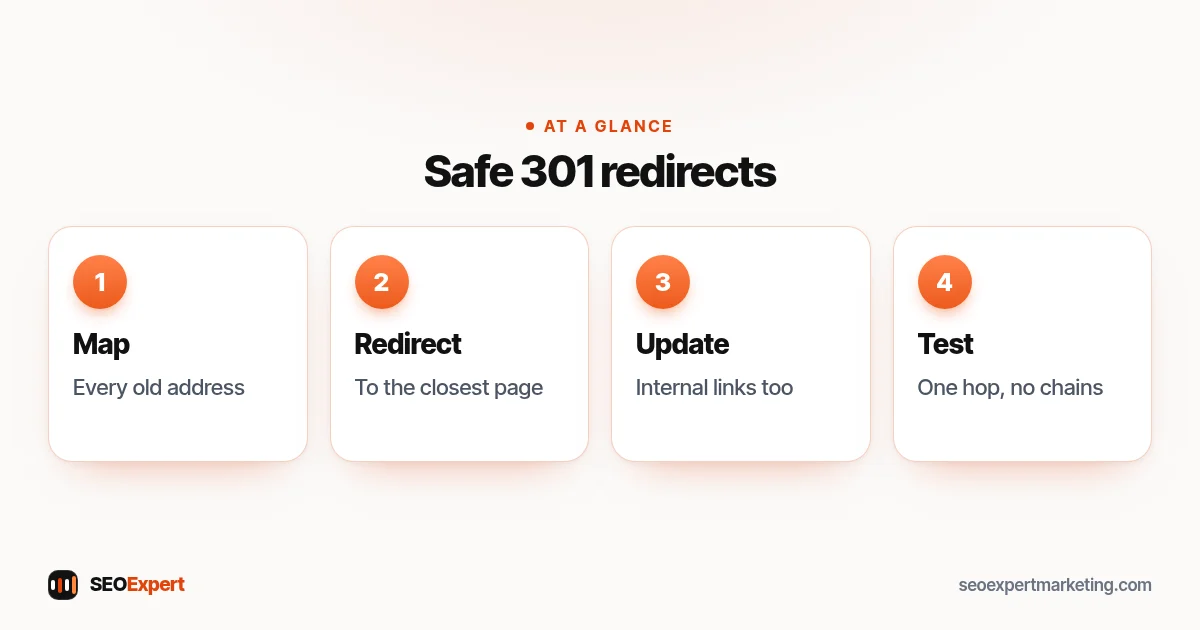
7 rules for safe redirects
1. Redirect to the closest equivalent page
Send each old address to the page that best matches what it used to offer. Redirecting everything to the home page confuses visitors, and Google may treat those redirects like missing pages. If there's genuinely no equivalent, a helpful 404 page is better than a misleading redirect.
2. Map every old address before a redesign
Before changing your site structure, list every current address, including pages with links from other sites and pages that get search traffic. Map each one to its new home in a spreadsheet. This simple step prevents most redesign disasters. Our guide to URL SEO explains how to choose good addresses in the first place.
3. Avoid redirect chains
A chain is when A redirects to B, which redirects to C. Chains slow visitors down, and Google may stop following after several hops. When you add a new redirect, update older redirects to point straight at the final page.
4. Update internal links
Redirects are a safety net, not a substitute for correct links. After changing an address, update the links in your menus, footer and content to point directly at the new page. Our guide to internal linking explains why clean links matter.
5. Keep redirects in place for a long time
Google's guide to site moves with URL changes recommends keeping redirects for as long as possible, generally at least one year. In practice, there's rarely a reason to remove them at all; links from other sites and old bookmarks keep working.
6. Use server-side redirects
Set up redirects on the server, through your CMS, SEO plugin or hosting panel, rather than with JavaScript or meta refresh tags. Server-side redirects are faster and the most reliable for Google.
7. Test after every change
Open old addresses in your browser and check you land on the right page. For larger changes, use a crawler or an online redirect checker to confirm each old address returns a single 301 to a working page.
How to set up a 301 redirect on WordPress
SEO plugins such as Rank Math include a redirections module, and plugins such as Redirection do the same job. Enter the old path, the new address and choose 301. Some plugins can also create redirects automatically when you change a page's slug, which is useful but worth checking. Hosting panels and server configuration files offer another route for developers.
How to set up a 301 redirect on Shopify
Shopify has a URL redirects section in the admin where you add the old path and the new destination. Shopify only redirects an address once it no longer loads a page, so add the redirect when you rename a handle or delete a product. When you edit a product or collection handle, Shopify offers to create the redirect for you; keep that option ticked.
Redirects during a website redesign
Most traffic losses after a redesign come from missing redirects. Before launch, export your current pages from your sitemap, Search Console's Performance report and a crawl; map each to its new address; set up the redirects; then test them on the new site before switching over. After launch, watch Search Console's Pages report for "Not found (404)" errors and add any redirects you missed.
How to find pages that need redirects
Start with the pages that matter most: those with links from other websites, those that get clicks in Search Console and those customers may have bookmarked or saved, such as price lists or booking pages. Search Console's Pages report lists addresses returning "Not found (404)", and its Links report shows which of your pages other sites link to. A crawl of your old site before a redesign gives you the full list. Prioritize anything with links or traffic; a page nobody visited for years can simply return a 404 if there's no equivalent.
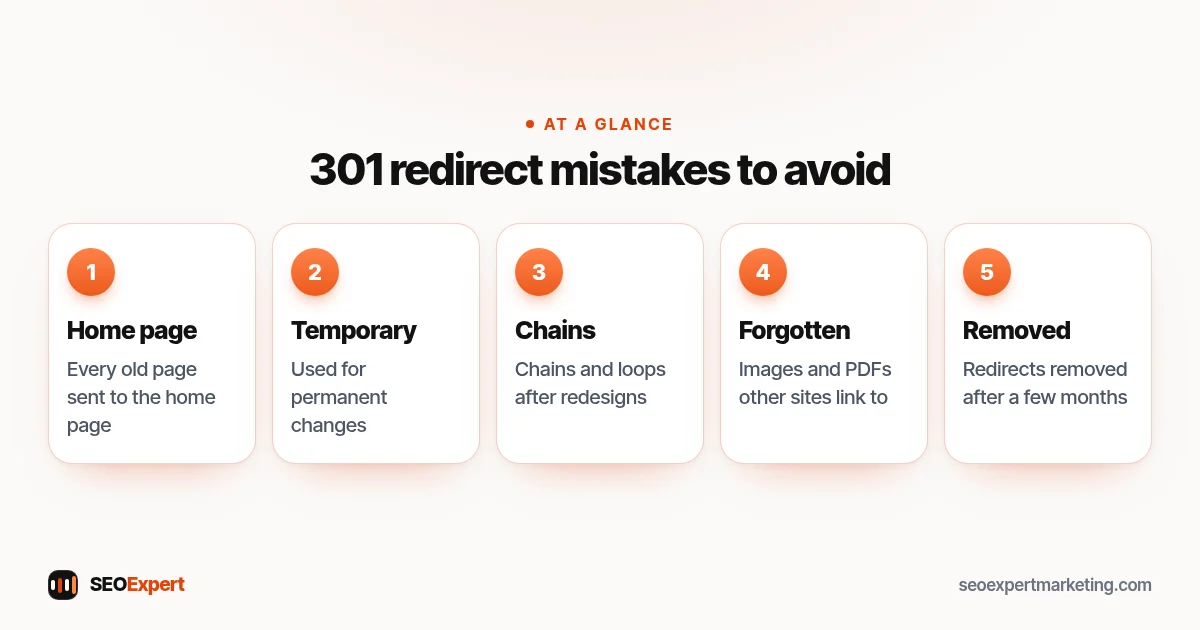
Common 301 redirect mistakes
- Redirecting every old page to the home page.
- Using temporary redirects for permanent changes.
- Redirect chains and loops after several redesigns.
- Forgetting images and PDFs that other sites link to.
- Removing redirects after a few months.
- Leaving internal links pointing at redirected addresses.
Five common 301 redirect mistakes to avoid:
Do redirects lose SEO value?
A correctly set up 301 redirect to an equivalent page is the standard, Google-recommended way to move a page, and Google uses it as a strong signal that the new address should become the canonical one. Rankings may fluctuate for a while as Google processes the change, especially during a full site move. Problems usually come from redirecting to unrelated pages or missing redirects altogether.
Need help?
301 redirect mapping is part of our technical SEO services, and we help clients plan redirects whenever a redesign or platform move is coming. Our technical SEO audit checklist includes a redirect check. Send your website on WhatsApp for a free review.
301 redirects: quick answers
What is a 301 redirect?
A permanent redirect that sends visitors and search engines from an old address to a new one, telling Google the move is permanent.
When should I use a 302 instead of a 301?
Only for genuinely temporary changes, such as maintenance or a short campaign, when the original address will come back.
How long should I keep redirects?
Google recommends generally at least a year. In practice, it's safest to keep them in place indefinitely.
Should I redirect deleted pages to my home page?
No. Redirect to the closest equivalent page. If there's no equivalent, a helpful 404 page is better than a misleading redirect.