
A technical SEO audit checklist helps you find the website problems that stop Google from crawling, indexing and showing your pages, even when the content is good. Technical issues are often invisible to visitors: a page accidentally blocked from search, two versions of the same page competing with each other, or a template that loads slowly on phones. This checklist walks through the checks in the order they matter, with the free tools to use for each and what "good" looks like. It's written for small business sites on WordPress, Shopify, Wix and similar platforms.
Want the short version first? Our one-page SEO cheat sheet sums up the main rules.
Tools you'll need
- Google Search Console: the most important tool for any technical SEO audit checklist, because it shows how Google itself sees your site.
- PageSpeed Insights: loading speed and Core Web Vitals for any page.
- The Rich Results Test and URL Inspection tool: how Google renders a page and reads its structured data.
- A crawler (optional): a desktop crawler, many with a free tier for small sites, lists every URL, status code, title and redirect in one place.
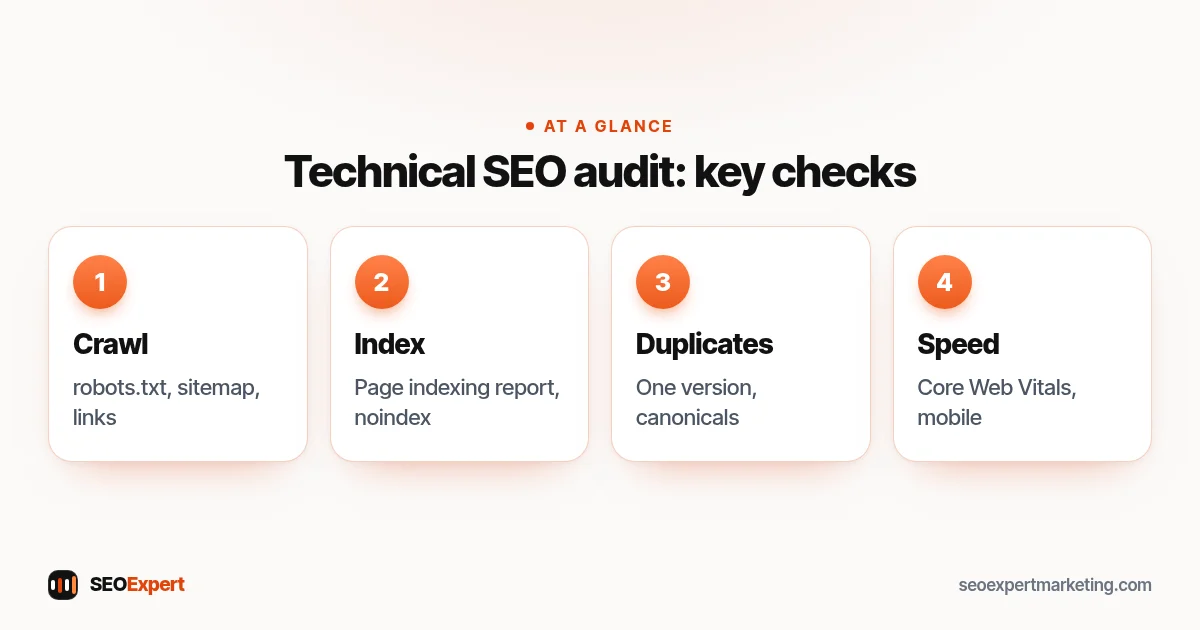
1. Crawling checklist
The first group of checks in any technical SEO audit checklist asks one question: can Google reach your pages?
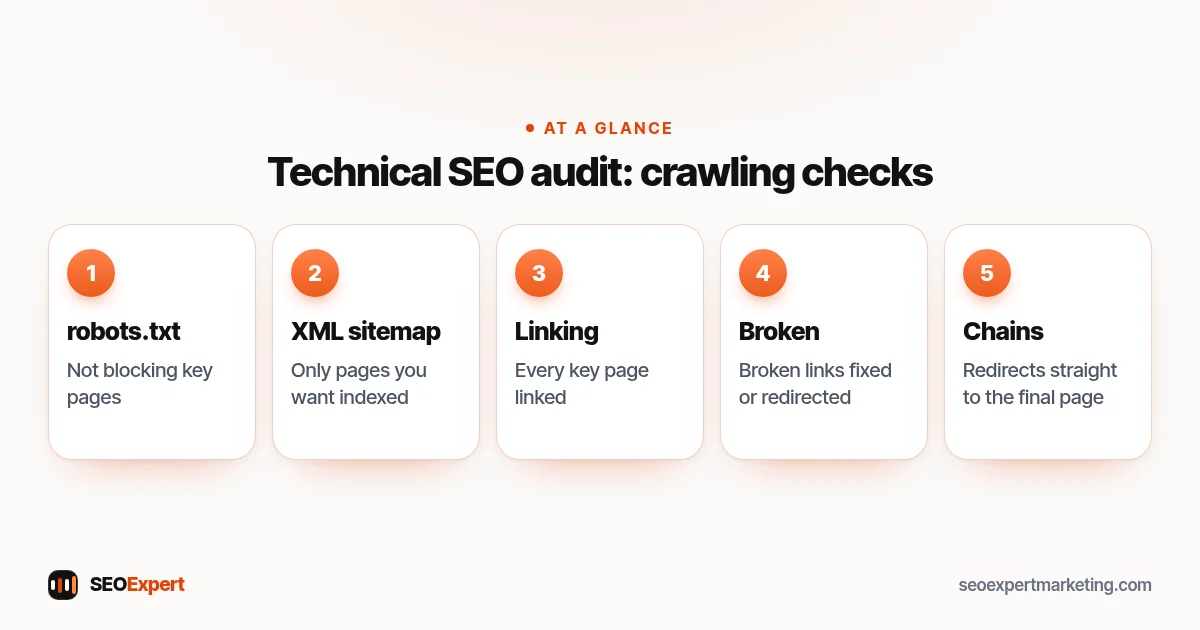
- robots.txt: open yoursite.com/robots.txt and make sure it doesn't block important sections. A single "Disallow: /" left over from a development site blocks everything.
- XML sitemap: exists, lists only pages you want indexed, and is submitted in Search Console.
- Internal links: every important page is linked from at least one other page; no important page is only reachable through a search box or a form.
- Broken links: internal links pointing to pages that return errors are fixed or redirected.
- Redirect chains: links go straight to the final address, not through several redirects.
The crawling part of the technical SEO audit checklist:
2. Indexing checklist
Next, the technical SEO audit checklist moves from reaching pages to storing them. The Page indexing report in Search Console shows which pages are indexed and the reason each other page isn't.
- Important pages show as indexed. If not, check the reason given, such as "Excluded by noindex tag" or "Crawled, currently not indexed".
- No important page carries a noindex tag by mistake, a common leftover after a redesign or plugin change.
- Pages you don't want in search, such as cart, checkout, account and thin tag pages, are kept out.
- Use URL Inspection on your key pages to see the version Google last crawled.
3. Duplicate content and canonical checklist
The same content at several addresses splits signals and confuses search engines. Google's guide to consolidating duplicate URLs explains the options, including redirects and canonical tags.
- Only one version of the site resolves: https, with or without www, and the others redirect to it.
- Each page has a canonical tag pointing to its own preferred address.
- URL parameters, tracking codes, sorting and filters don't create indexable copies of the same page.
- Printer-friendly or old copies of pages are removed or redirected.
Our guide to URL SEO explains how to write and change URLs safely.
4. Speed and Core Web Vitals checklist
Google's page on Core Web Vitals recommends aiming for a Largest Contentful Paint within 2.5 seconds, an Interaction to Next Paint below 200 milliseconds and a Cumulative Layout Shift below 0.1.
- Check the Core Web Vitals report in Search Console for groups of slow pages.
- Test your main templates (home, service page, article, product) with PageSpeed Insights on mobile.
- Compress images, serve them in modern formats and size them to how they're displayed.
- Remove unused plugins, apps, fonts and scripts.
- Use caching and, where it helps, a content delivery network.
5. Mobile checklist
- Text is readable without zooming, and buttons are easy to tap.
- Menus, forms and pop-ups work on a phone and don't cover the content.
- The mobile version has the same important content and links as the desktop version.
For a deeper look at phone performance, see our guide to mobile SEO.
6. Security and status codes checklist
- The whole site runs on https with a valid certificate, with no mixed-content warnings.
- Deleted pages return a proper "not found" status or redirect to a close replacement.
- No "soft 404s": empty or error pages that still return a success status.
- Check the Security issues and Manual actions reports in Search Console.
7. Structured data checklist
- Organization or LocalBusiness markup on the home or contact page, with details that match the page.
- Article markup on blog posts, Product markup on product pages and FAQ markup only where there's a visible FAQ.
- No markup for content that isn't on the page, such as reviews you don't display.
- Test key templates with the Rich Results Test and fix errors.
8. On-page technical basics
- Every page has a unique title and meta description.
- One H1 per page, with a logical heading structure below it.
- Images have descriptive alt text.
- Pages have clean, readable URLs that won't need to change.
Platform notes for this technical SEO audit checklist
Most small business sites run on a platform that handles part of the technical SEO audit checklist for you, and adds a few quirks of its own:
- WordPress: check the "Discourage search engines" setting under Reading, and your SEO plugin's sitemap and noindex settings for tags, categories and media pages. Our WordPress SEO page covers the common plugin and theme issues.
- Shopify: sitemaps and canonical tags are automatic, but apps can slow pages down and collection paths create extra product URLs. See our Shopify SEO page.
- Wix and Squarespace: most settings live in the built-in SEO panel; check that each page has its own title and that no page is hidden from search by mistake.
How to prioritize what you find
A technical SEO audit checklist on a real site usually turns up dozens of items. Sort them like this:
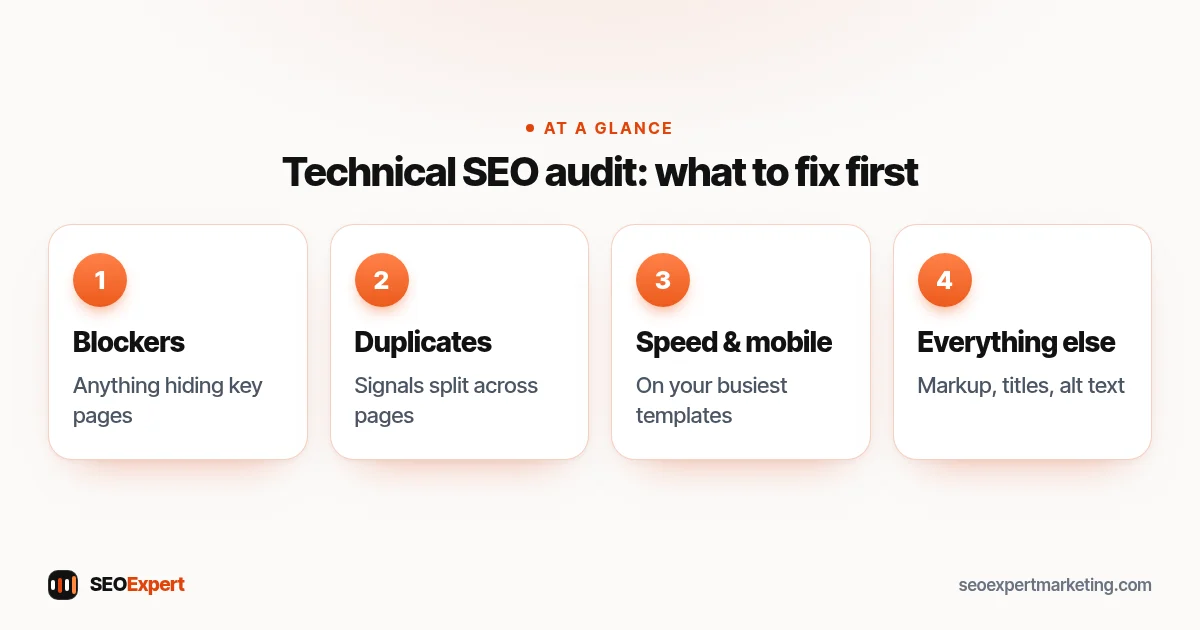
- Blockers: anything stopping important pages from being crawled or indexed. Fix these first.
- Duplicates and redirects that split signals across several URLs.
- Speed and mobile issues on your most visited templates.
- Everything else: markup, titles, alt text and minor warnings, worked through over time.
Many tool warnings don't matter much. Focus on issues that affect important pages, and check after each fix that the page is indexed and working.
How to prioritize what the technical SEO audit checklist finds:
How often to run this technical SEO audit checklist
Run the full technical SEO audit checklist once or twice a year, and always before and after a redesign, a platform move or a major plugin or theme change. Between audits, a monthly look at Search Console's indexing and Core Web Vitals reports catches most new problems early.
Want the bigger picture beyond this technical SEO audit checklist? Our guide what is an SEO audit covers content, links and local checks too. If you'd rather have someone do the technical work, our technical SEO services page explains what we check and fix, and our one-time SEO services include a $59 audit and a Technical SEO Fix Pack.
Technical SEO audit checklist: quick answers
Can I run a technical SEO audit without paid tools?
Yes. Search Console, PageSpeed Insights, the URL Inspection tool and the Rich Results Test cover the essentials for a small site. Paid crawlers help on larger sites by listing every URL and issue at once.
What's the most common technical SEO problem on small sites?
Accidental blocking, such as a noindex tag or robots.txt rule left over from development, and duplicate versions of the site (http and https, or with and without www) that aren't redirected to one address.
Do Core Web Vitals affect rankings?
Google uses them as part of its page experience signals, but relevant, helpful content matters more. Treat speed as important for visitors and as a tiebreaker, not as the main ranking factor.
Do I need a developer to fix technical SEO issues?
Not always. Titles, redirects, sitemaps and many settings can be handled in WordPress, Shopify or Wix settings or an SEO plugin. Server, theme or code changes may need a developer.