
Google Search Console is a free tool from Google that shows how your website appears in Google Search. It tells you which searches bring visitors, which pages Google has indexed, and whether anything is stopping your pages from showing. For a small business it's the most reliable source of SEO data you can get, and it costs nothing. This guide walks through setting up Google Search Console and the reports worth checking, in eight simple steps.
What is Google Search Console?
Google's help center describes Search Console as a free service that helps you monitor, maintain and troubleshoot your site's presence in Google Search results. You don't need it to appear in Google, but without it you're guessing. It shows real data from Google, not estimates from a third-party tool.
Step 1: Add and verify your site
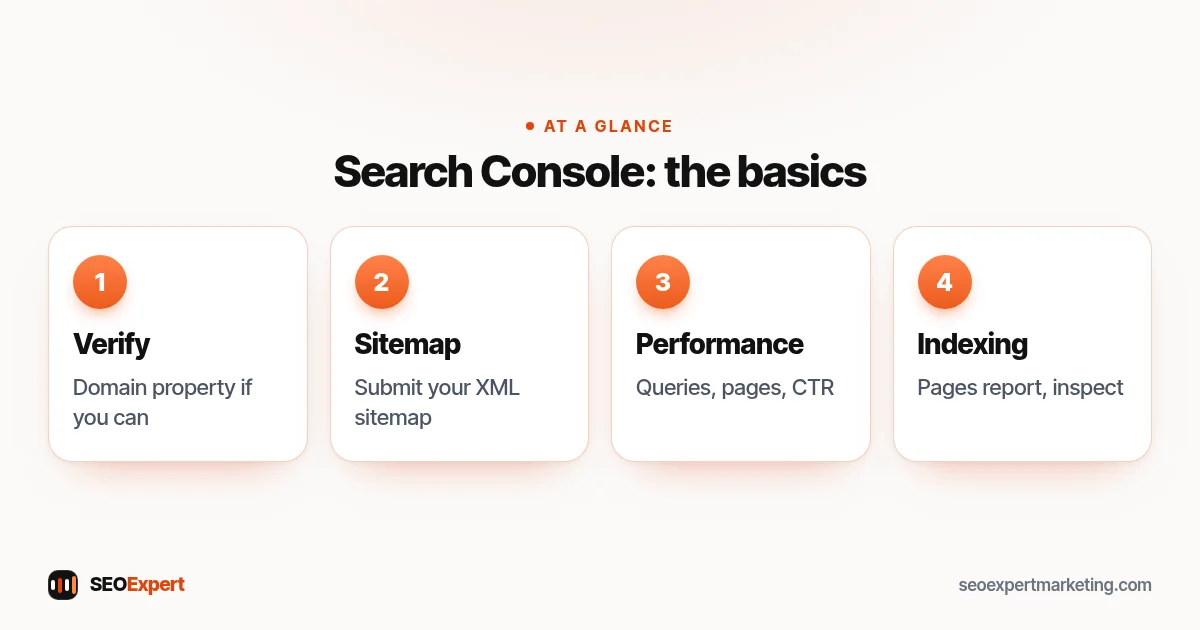
Sign in to Google Search Console with a Google account and add a property. A Domain property covers every version of your site (with and without www, http and https) and is verified with a DNS record at your domain provider. A URL-prefix property covers one version and can be verified in other ways, such as an HTML tag, which many SEO plugins can add for you. If you can, choose a Domain property.
Step 2: Submit your sitemap
In the Sitemaps report, enter the address of your XML sitemap, often /sitemap.xml or /sitemap_index.xml on WordPress sites with an SEO plugin. This helps Google discover your pages. Only pages you want in Google should be listed.
Not sure what your sitemap should contain? See our XML sitemap guide.
Step 3: Read the Performance report
The Performance report shows clicks, impressions, average click-through rate and average position for your site in Google Search. Switch between the Queries, Pages, Countries and Devices tabs to see which searches and pages bring traffic, and from where. Start with the last three months and compare with the previous period.
What the four numbers mean
- Impressions: how often your pages appeared in results.
- Clicks: how often people clicked through to your site.
- CTR: clicks divided by impressions.
- Average position: your average ranking for the searches shown, where 1 is the top.
Step 4: Check which pages are indexed
The Pages report (under Indexing) shows how many of your pages are indexed and lists the reasons others aren't. Some reasons are normal, such as pages you've deliberately set to noindex or duplicates Google has grouped together. Others need attention, such as server errors or important pages that are "crawled, currently not indexed".
Step 5: Inspect individual pages
The URL Inspection tool shows whether a specific page is indexed, when Google last crawled it and whether it found problems. You can test the live page and click Request indexing after publishing or changing an important page. Requesting indexing doesn't promise the page will appear, but it asks Google to crawl it.
Step 6: Check page experience and Core Web Vitals
The Core Web Vitals report groups your pages by real-world loading speed, responsiveness and visual stability, based on data from Chrome users. Small sites may not have enough data to show. Our guide to Core Web Vitals explains the three metrics and how to improve them.
Step 7: Watch for security and manual actions
Search Console tells you if Google has found security issues, such as hacked content, or has taken a manual action against your site for breaking its spam policies. These are rare for honest small business sites, but they're serious, so check the reports occasionally and act quickly on any message.
Step 8: Set up email alerts and users
Google Search Console sends important messages by email to verified owners. Add anyone who helps with your site, such as a developer or SEO provider, as a user with the right level of access, instead of sharing your Google login. You can remove their access at any time.
Five simple monthly checks
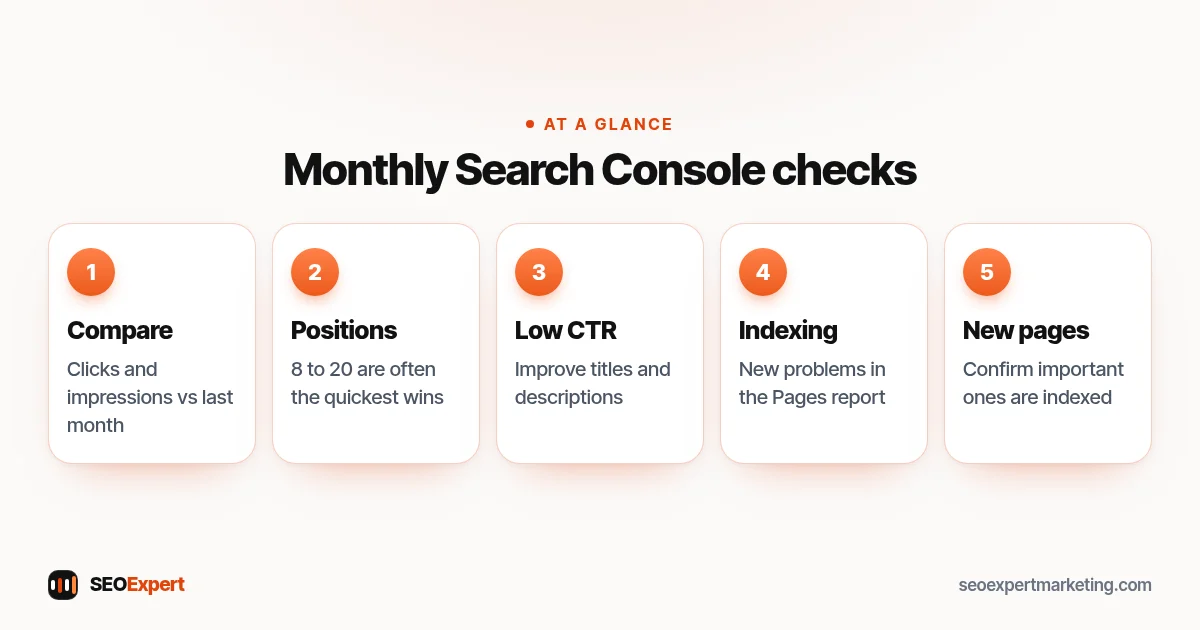
- Compare clicks and impressions with the previous month and the same month last year.
- Look for searches where you rank between positions 8 and 20; these are often the quickest wins.
- Find pages with many impressions but a low CTR and improve their titles and descriptions.
- Check the Pages report for new indexing problems.
- Inspect any important new page to confirm it's indexed.
Five simple monthly checks to run in Google Search Console:
New to the Queries tab? Our guide to what a search query is explains the four types and how to read them.
Finding quick wins in the Performance report
Filter the Queries tab to show average position, then sort by impressions. Searches where you sit between positions 8 and 20 with plenty of impressions are often the best places to focus: Google already sees the page as relevant, and a better title, a clearer answer or a few internal links can move it up. Click a query, then the Pages tab, to see which page ranks for it. If the wrong page ranks, such as an old article instead of your service page, strengthen the right page and link to it from the wrong one.
Reading the Pages report without panic
The Pages report lists every reason Google found for not indexing a URL, and many are expected. "Page with redirect", "Alternate page with proper canonical tag" and "Excluded by noindex tag" usually mean your setup is working as intended. Pay closer attention to "Server error (5xx)", "Not found (404)" on pages that should exist, and important pages listed as "Discovered" or "Crawled, currently not indexed". For those, check the page is useful, linked from other pages and listed in your sitemap.
How long data takes to appear
Performance data usually appears within a few days of verification, so it's worth setting up even before you start any SEO work. Compare periods of the same length, and remember that seasonal businesses should compare with the same months last year rather than the previous month.
Google Search Console vs Google Analytics
Search Console shows what happens in Google Search before someone reaches your site: searches, impressions, clicks and positions. Google Analytics shows what visitors do after they arrive: pages viewed, enquiries and sales. They answer different questions, and most businesses benefit from both. Our guide to a useful SEO report shows how to combine them in one monthly summary.
Common Google Search Console mistakes
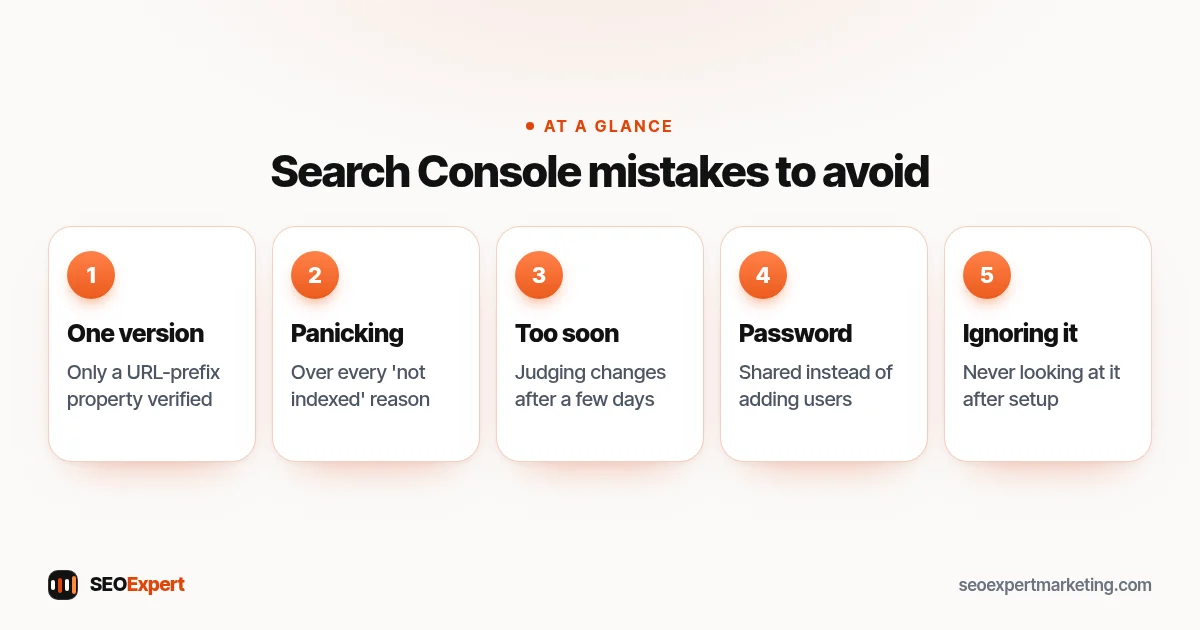
- Verifying only one version of the site with a URL-prefix property.
- Panicking about every "not indexed" reason, including normal ones.
- Judging changes after a few days instead of a few weeks.
- Sharing your Google password instead of adding users.
- Never looking at it after setup.
Five common Google Search Console mistakes to avoid:
Need a second pair of eyes?
Every SEO audit we do starts in Google Search Console, because it shows what Google really sees. If your reports show problems you don't understand, send your website on WhatsApp for a free review, or read our guide on what an SEO audit is.
Google Search Console: quick answers
Is Google Search Console free?
Yes. It's a free service from Google for website owners and anyone they give access to.
How long until Search Console shows data?
Data usually starts appearing within a few days of verification. Reports cover the time since Google started collecting data for the property.
Does Request indexing make my page rank?
No. It asks Google to crawl the page. Whether and where it appears still depends on Google's systems.
Should my SEO provider have access to Search Console?
Yes, as a user you add, not with your Google password. You can give them limited access and remove it at any time.
