
An XML sitemap is a file that lists the pages on your website you want search engines to find. It works like a table of contents for Google: it doesn't make pages rank, but it helps Google discover them and notice when they change. Most WordPress and Shopify sites already have one created automatically. This guide explains what an XML sitemap is, whether you need one, what should be in it and how to submit it to Google.
What is an XML sitemap?
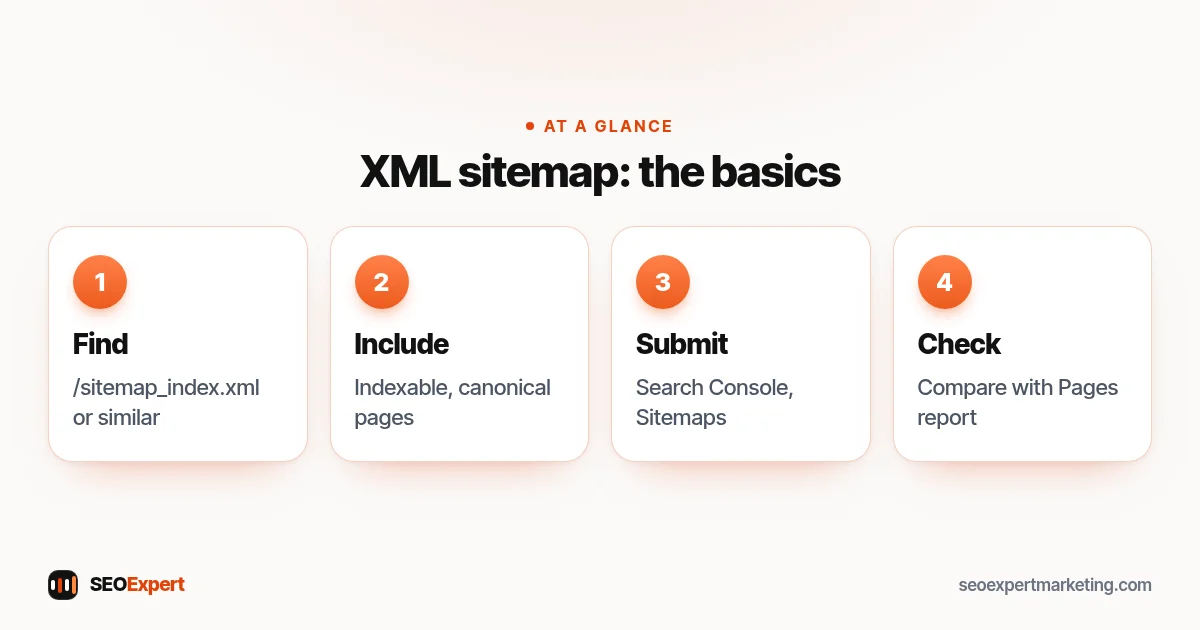
It's a plain file, usually at an address such as /sitemap.xml or /sitemap_index.xml, that lists your important URLs and, optionally, when each was last updated. Google's sitemap overview explains that a sitemap tells Google which pages and files you think are important and provides information about them. Sitemaps can also describe images, videos and news content.
Sitemap limits and the other technical basics are summed up in our SEO cheat sheet.
Do you need an XML sitemap?
Google says that if your pages are properly linked, it can usually discover most of your site. It adds that you might not need a sitemap if your site is small, which it defines as about 500 pages or fewer, and well linked. You're more likely to need one if your site is large, new with few links pointing to it, or has many pages that aren't well linked. In practice, a sitemap costs nothing on WordPress or Shopify, so most small businesses should simply make sure theirs is working and submitted.
What to include in your XML sitemap
- Pages you want in Google: home, services, products, categories, articles, contact and about.
- The canonical version of each page, with the exact address you want shown.
- Only pages that return a normal 200 status, not redirects or errors.
What to leave out
- Pages set to noindex, such as thank-you pages, carts and account pages.
- Redirected or deleted pages.
- Duplicate versions, filtered views and tracking-code URLs. Our guide to duplicate content explains why.
- Thin tag and archive pages you don't want in search.
Size limits
Google's guide to building and submitting a sitemap says a single sitemap is limited to 50MB uncompressed or 50,000 URLs. Larger sites split their URLs into several sitemaps and list them in a sitemap index file. Small business sites rarely come close to these limits.
XML sitemap on WordPress
WordPress creates a basic sitemap at /wp-sitemap.xml. SEO plugins such as Rank Math and Yoast replace it with their own, usually at /sitemap_index.xml, split by content type. Check the plugin's settings to exclude content types you don't want in search, such as tag archives or media attachment pages. Our WordPress SEO checklist covers the related settings.
XML sitemap on Shopify
Shopify generates a sitemap automatically at /sitemap.xml, listing products, collections, pages and blog posts. You can't edit it directly, but hiding a page from search or removing a product updates it. Make sure products you've stopped selling are handled sensibly, either redirected to a relevant alternative or left with a clear note if they'll return.
How to submit your XML sitemap to Google
- Open Google Search Console and choose your property.
- Go to Sitemaps under Indexing.
- Enter the sitemap address, for example sitemap_index.xml, and click Submit.
- Check back after a few days: the status should say Success, with the number of discovered pages.
You can also list your sitemap in your robots.txt file with a Sitemap line, which helps other search engines find it. Our Google Search Console guide walks through the setup.
Reading the Sitemaps report
Submitting a sitemap doesn't mean every listed page will be indexed. Compare the number of discovered pages with the Pages report. If many important pages in your sitemap aren't indexed, look at the reasons given, such as "crawled, currently not indexed", and improve those pages or their internal links.
What a sitemap entry looks like
Each page in the file has its own entry with the page address in a loc tag and, optionally, the date it last changed in a lastmod tag. Google uses the last modified date when it's consistently accurate, so let your CMS update it automatically rather than changing it by hand. Older guides mention priority and change frequency values; Google's documentation says it ignores them, so there's no need to adjust them.
How to check your sitemap in five minutes
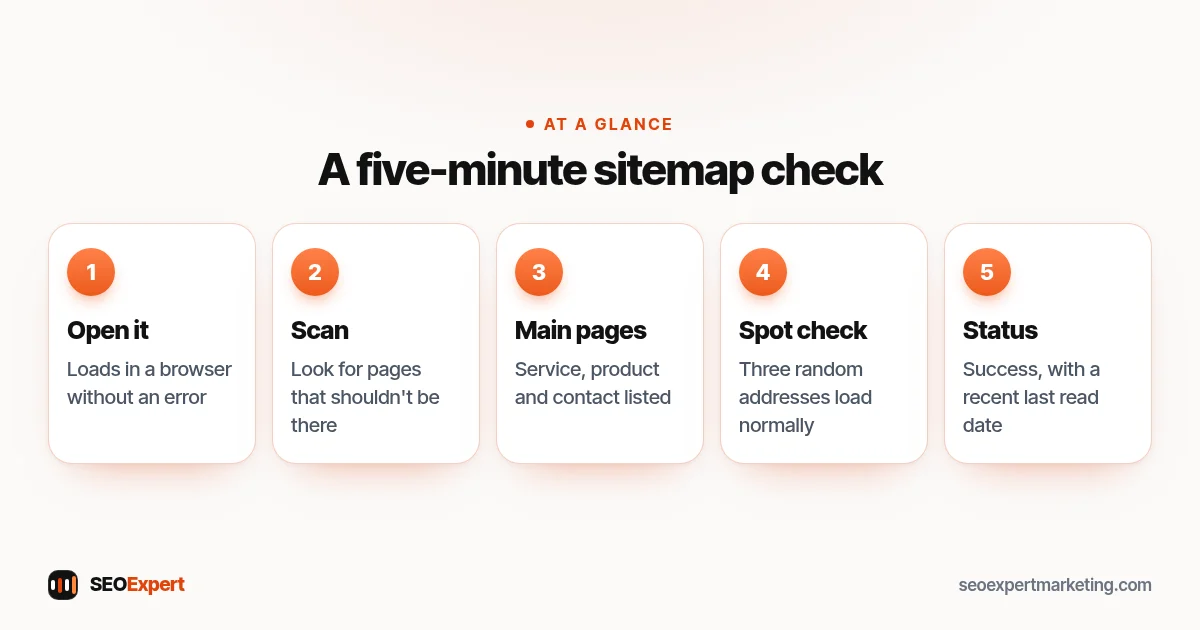
- Open the sitemap address in your browser and make sure it loads without an error.
- Click into each sub-sitemap and scan the list for pages that shouldn't be there, such as test pages, thank-you pages or old services.
- Check that your main service, product and contact pages are listed.
- Pick three addresses at random and open them: they should load normally, not redirect.
- In Search Console's Sitemaps report, confirm the status says Success and the last read date is recent.
The five-minute XML sitemap check, step by step:
After a redesign or migration
When you move to a new website, theme or platform, the sitemap address often changes. Submit the new sitemap, remove the old one from Search Console once the redirects are in place, and keep an eye on the Pages report for a few weeks. A clean sitemap helps Google find the new addresses quickly, while redirects carry visitors and signals from the old ones.
Sitemaps and new pages
When you publish a new page, your CMS adds it to the sitemap automatically, and Google picks up the change the next time it reads the file. For important new pages, you can also inspect the address in Search Console and click Request indexing, and make sure at least one existing page links to it. Links from pages Google already knows about are usually the fastest route to discovery; the sitemap is the safety net that catches anything links miss.
Do other search engines use your sitemap?
Yes. Bing and other search engines also read sitemaps, and Bing Webmaster Tools has its own place to submit one. Listing your sitemap in robots.txt lets any search engine find it without a separate submission. Some sites also use IndexNow to notify participating search engines of changes instantly, which complements, rather than replaces, a sitemap.
Common XML sitemap mistakes
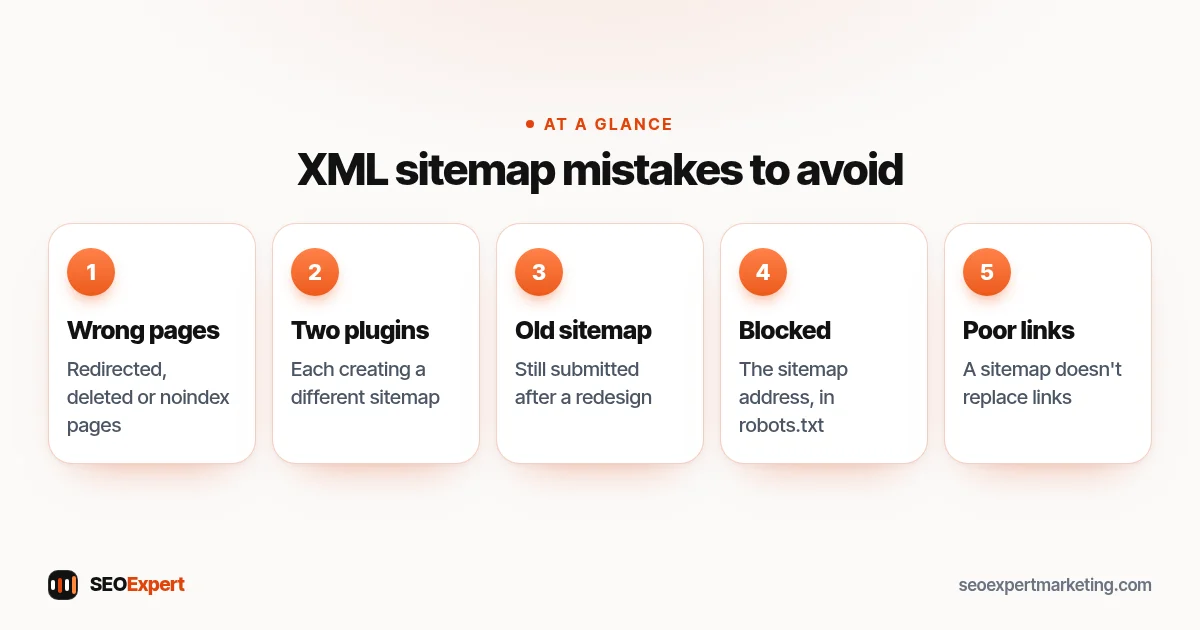
- Listing redirected, deleted or noindex pages.
- Two plugins creating two different sitemaps.
- A sitemap from an old site still submitted after a redesign.
- Blocking the sitemap address in robots.txt.
- Assuming a sitemap fixes poor internal linking; it doesn't replace links between pages.
Five common XML sitemap mistakes to avoid:
Your sitemap is often listed in robots.txt; our robots.txt guide explains that file and the safe settings.
XML sitemap vs HTML sitemap
The XML version is written for search engines. An HTML sitemap is an ordinary page that lists your site's pages for visitors. Small sites with clear menus rarely need an HTML sitemap; good navigation and internal linking do the same job better.
Need help?
Checking your sitemap, robots.txt and indexing is part of our technical SEO services. Send your website on WhatsApp for a free review.
XML sitemap: quick answers
Where is my XML sitemap?
Try /sitemap_index.xml (WordPress with an SEO plugin), /wp-sitemap.xml (WordPress without one) or /sitemap.xml (Shopify and many other platforms).
Does an XML sitemap help rankings?
Not directly. It helps Google discover your pages and notice updates. Ranking depends on the pages themselves.
How often should I resubmit my sitemap?
Usually never. Once submitted, Google checks it again over time. Resubmit only if the address changes.
Should every page be in my sitemap?
No. Include the pages you want in Google, and leave out noindex, redirected, duplicate and thin pages.