Robots.txt is a small text file at the root of your website that tells search engine crawlers which parts of the site they may crawl. Most small business sites never need to touch it: WordPress and Shopify create a sensible one automatically. But a single wrong line in it can block your whole site from Google, so it's worth knowing what the file does, what it doesn't do and how to check yours. This guide explains the file in plain English, with five safe rules.
What is robots.txt?
It's a plain text file at an address such as example.com/robots.txt. Google's introduction to robots.txt explains that it tells crawlers which URLs they can access on your site, and that it's used mainly to avoid overloading your site with requests. Each group of rules names a crawler (User-agent) and lists paths to Disallow or Allow. A Sitemap line can point crawlers to your XML sitemap.
What the file can't do
This is the most misunderstood point. Google says the file is not a mechanism for keeping a web page out of Google. A blocked page can still appear in search results, without a description, if other pages link to it. To keep a page out of Google, use a noindex tag or password protection instead. And don't block a page from crawling if you've added noindex to it, because Google can't see the noindex tag on a page it isn't allowed to crawl.
What a typical file looks like
WordPress's default file blocks the admin area but allows the file that some features need, and SEO plugins usually add a Sitemap line. Shopify's default file blocks the cart, checkout, account and internal search pages, and lists the sitemap. For most small business sites, these defaults are right and nothing needs to change.
| Line | What it means |
|---|---|
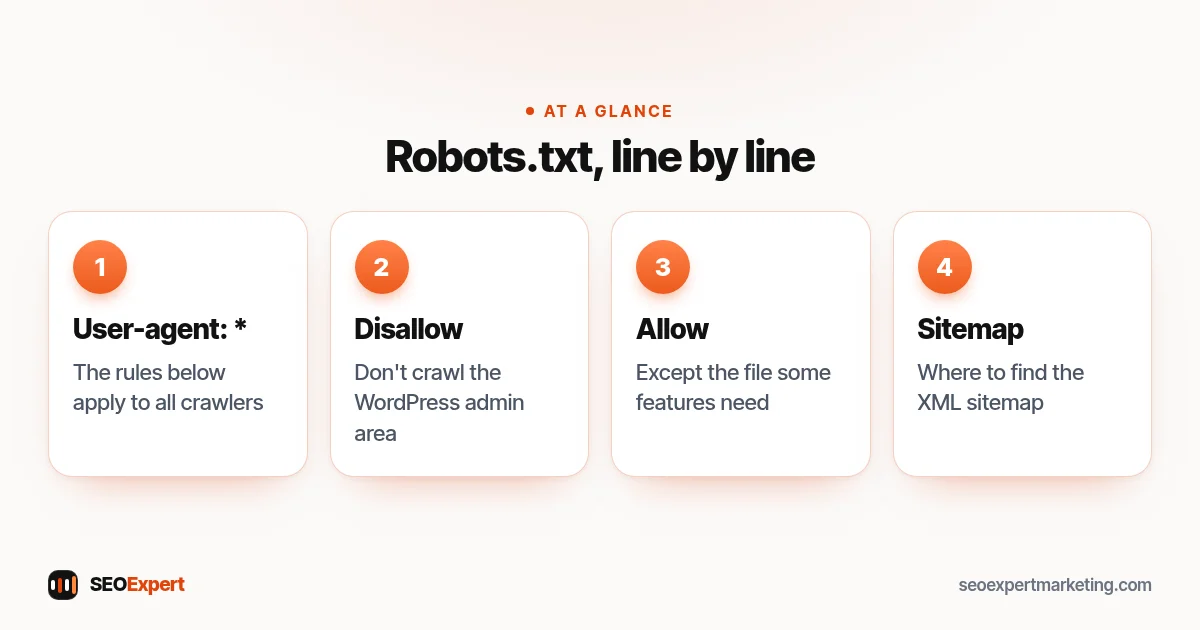
| User-agent: * | The rules below apply to all crawlers |
| Disallow: /wp-admin/ | Don't crawl the WordPress admin area |
| Allow: /wp-admin/admin-ajax.php | Except this file, which some features need |
| Sitemap: https://example.com/sitemap_index.xml | Where to find the XML sitemap |
What each line of a typical robots.txt file means:
5 safe rules for robots.txt
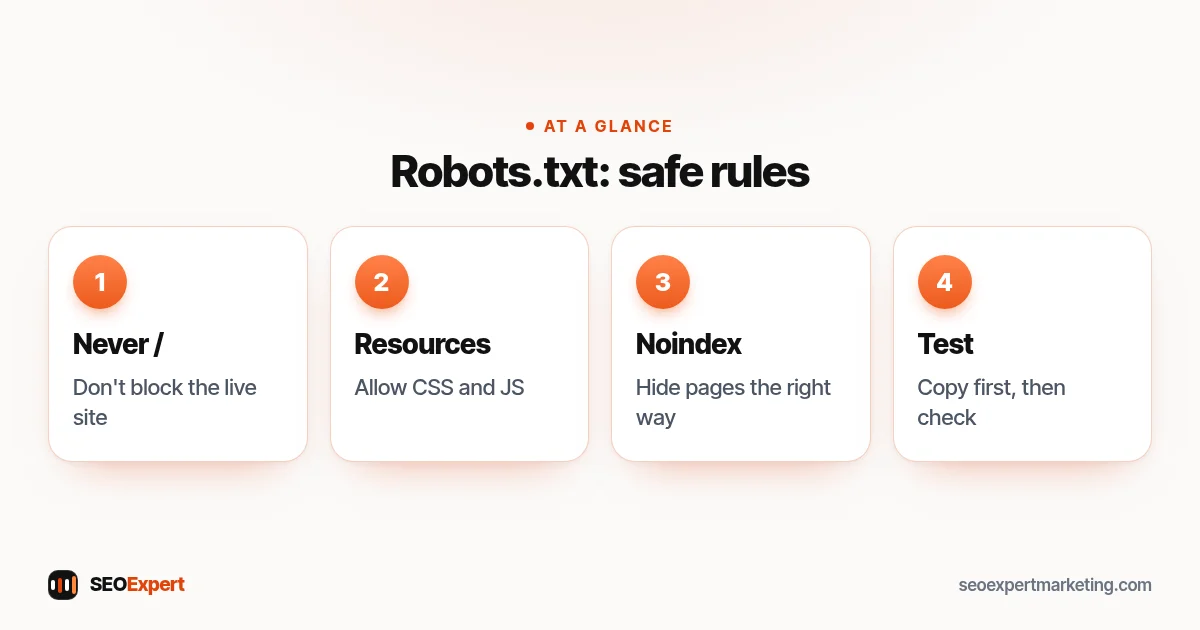
1. Never block the whole site on a live website
"Disallow: /" under "User-agent: *" blocks every page. It's sometimes used on staging sites and then copied to the live site by accident at launch, or left on after WordPress's "Discourage search engines" setting. Check your robots.txt after every launch or migration.
2. Don't block CSS, JavaScript or images your pages need
Google renders pages like a browser. If it can't load the files that build your layout, it may misunderstand the page, especially on mobile. Old advice to block theme or plugin folders is outdated.
3. Use noindex to keep pages out of search
Thank-you pages, internal search results and thin tag archives are better handled with noindex through your SEO plugin, so Google can crawl them and see the instruction.
4. Block only what wastes crawling
On large online stores, blocking endless filter and sort combinations can stop crawlers wasting time on near-duplicate pages. Our guide to category page SEO explains how filters create duplicates. Small sites rarely need this.
5. Keep a copy and test changes
Save the current file before editing, change one thing at a time and check the result. Search Console's robots.txt report shows the version Google last fetched and any errors.
How to view and edit the file
- View: type your domain followed by /robots.txt into a browser.
- WordPress: SEO plugins such as Rank Math and Yoast include an editor for the file; without one, WordPress serves a virtual default file.
- Shopify: the file is generated from a theme template; most stores should keep the default, as Shopify warns that mistakes can cost traffic.
Robots.txt and AI crawlers
Some businesses now use the file to allow or block crawlers run by AI companies, each identified by its own user-agent name. This is a business decision about how your content is used. Blocking those crawlers doesn't stop Google Search from crawling your site, as long as you don't block Googlebot itself, but check each company's documentation for the correct crawler name.
Which tool to use: a quick comparison
| Goal | Best tool | Why |
|---|---|---|
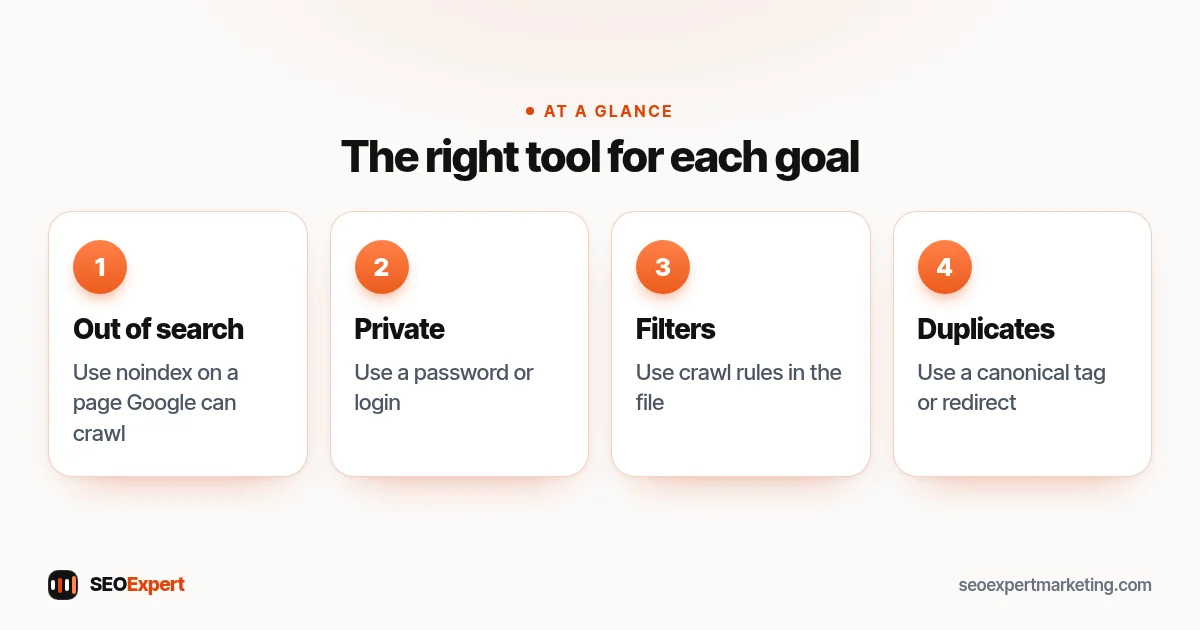
| Keep a page out of search results | noindex | Google must be able to crawl the page to see it |
| Keep private content private | Password or login | Blocked pages can still be found and the file is public |
| Stop crawlers wasting time on endless filters | Crawl rules in the file | Reduces crawling of near-duplicate pages |
| Point to the preferred version of a page | Canonical tag or redirect | Consolidates duplicates |
When robots.txt is the right tool, and when it isn't:
What happens if the file is missing or broken?
Google's technical specification explains that if the file returns a 4xx error, such as 404, Google treats it as if no file existed and assumes there are no crawl restrictions. Server errors are more serious: if Google can't fetch the file because of a 5xx error, it stops crawling the site for the first 12 hours while it keeps trying, then uses the last good version for up to 30 days. So a missing file is harmless, but a server that fails when asked for it can pause crawling. Google also says it generally caches the file for up to 24 hours, so changes aren't picked up instantly.
Staging sites and new launches
Developers often block staging sites from crawlers while a new website is built. That's sensible, but password protection is safer, because blocked pages can still be found. The real danger comes at launch: if the blocking rules are copied to the live site, Google stops crawling it. Make "check the crawl rules and the noindex setting" a fixed item on every launch checklist, alongside redirects and the sitemap.
Crawl rules for online stores
Stores are where crawl rules matter most. Internal search results, endless sort orders and combinations of filters can create thousands of near-identical addresses. Blocking the parameters that create them can save crawling for the products and categories that matter, but only after you've decided which filtered pages deserve to be indexed. Shopify's default rules already cover the cart, checkout and internal search.
Common mistakes with crawl rules
- "Disallow: /" left on the live site after launch.
- Blocking pages that also have noindex, so Google never sees the noindex.
- Blocking CSS and JavaScript folders.
- Using the file to hide private content; anyone can read it.
- Typos in paths, which are case-sensitive.
- Pointing the Sitemap line at an old sitemap address.
How to check your site isn't blocked
Open the file in your browser and look for "Disallow: /" on its own. In Search Console, inspect your home page with the URL Inspection tool: it tells you if crawling is blocked. Also check the Pages report for "Blocked by robots.txt". Our XML sitemap guide and technical SEO audit checklist cover the related checks.
Need help?
Checking crawl rules, noindex settings and sitemaps is part of our technical SEO services. Send your website on WhatsApp for a free review.
Robots.txt: quick answers
What does robots.txt do?
It tells search engine crawlers which parts of your site they may crawl. It's mainly used to avoid overloading a site with requests.
Can the file hide a page from Google?
No. A blocked page can still appear in results if other pages link to it. Use noindex or password protection to keep a page out of Google.
Do I need to change the default file?
Usually not. WordPress and Shopify create sensible defaults. Check it after a launch or migration to make sure the live site isn't blocked.
Where is my robots.txt file?
At the root of your domain: type your domain followed by /robots.txt into a browser.