
Above the fold is the part of a web page people see before they scroll. The name comes from newspapers, where the top stories sat above the fold of the paper on the newsstand. For SEO, what you put above the fold matters in two ways: Google has long looked at whether people can find the actual content quickly, and visitors decide within seconds whether they're in the right place. This guide explains what above the fold means today, what Google has said about it, what to put there and what to keep out, with a simple checklist for phones and computers.
What does above the fold mean on a website?
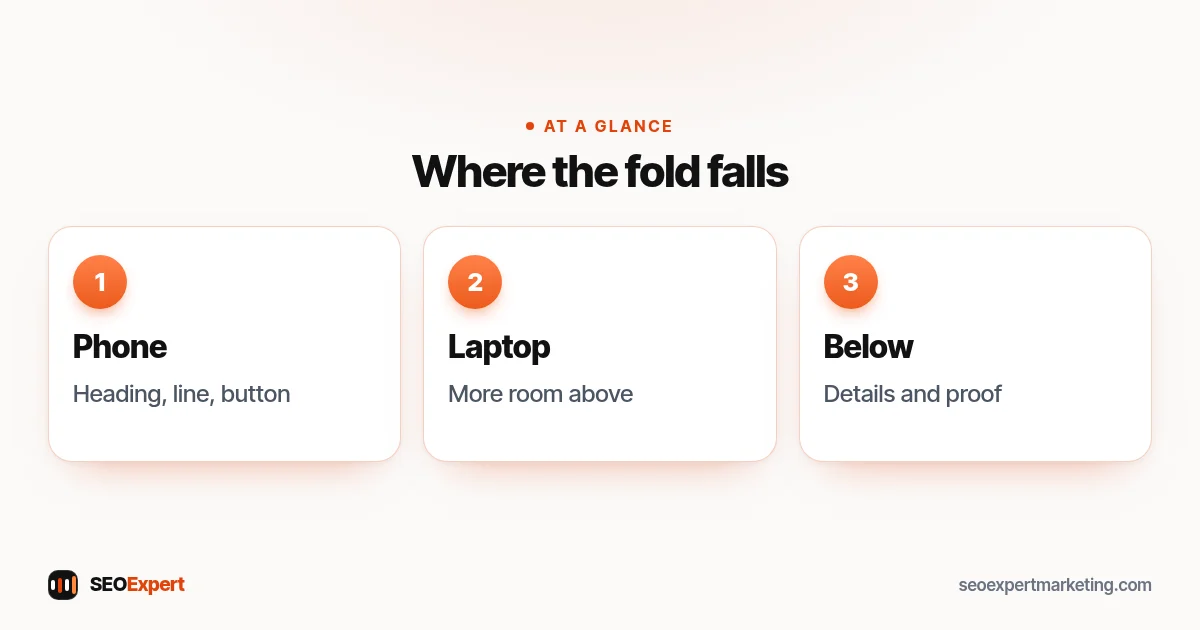
On a website, above the fold is everything visible in the browser window when a page first loads, without scrolling. Below the fold is everything else. There's no single fold line: it depends on the screen. On a laptop it's whatever fits in the browser window, which changes with the screen and window size; on a phone it's often just a heading, a sentence and a button. Many local searches happen on phones (Search Console's Performance report shows your own phone and computer split), so the phone view is usually the one to design for first.
The term also covers more than layout. It's about first impressions: does the top of the page tell visitors they've found what they searched for, and what to do next?
Does above the fold content matter for SEO?
Yes, though not as a simple rule like "put your keyword in the first 100 pixels". Here is what Google has actually said.
Google's 2012 page layout update
On January 19, 2012, Google announced a page layout algorithm improvement. It said users complained when they clicked a result and couldn't find the actual content, and that sites with little visible content above the fold, or with a large share of the first screen given to ads, may not rank as highly. Google added that it didn't affect sites that placed ads above the fold to a normal degree, and that the change noticeably affected less than 1% of searches globally. Google now points readers of that post to its page experience documentation.
Page experience today
Google's page experience guidance asks site owners questions such as: does your content avoid an excessive amount of ads that distract from or interfere with the main content, do your pages avoid intrusive interstitials, and is the page designed so visitors can easily tell the main content apart from everything else? Google says Core Web Vitals are used by its ranking systems, but the other points don't directly help a page rank higher, and Google still shows the most relevant content even when page experience is weak. They still matter for visitors, and the first screen is where heavy ads, pop-ups or hard-to-find main content get noticed first.
Loading speed
The Largest Contentful Paint (LCP), one of Google's Core Web Vitals, measures how long it takes for the largest image, text block or video visible on the screen to appear, so the LCP element is always on the first screen, usually a hero image or a heading. A slow, heavy top section hurts this score. Our guide to Core Web Vitals explains the targets.
What to put above the fold
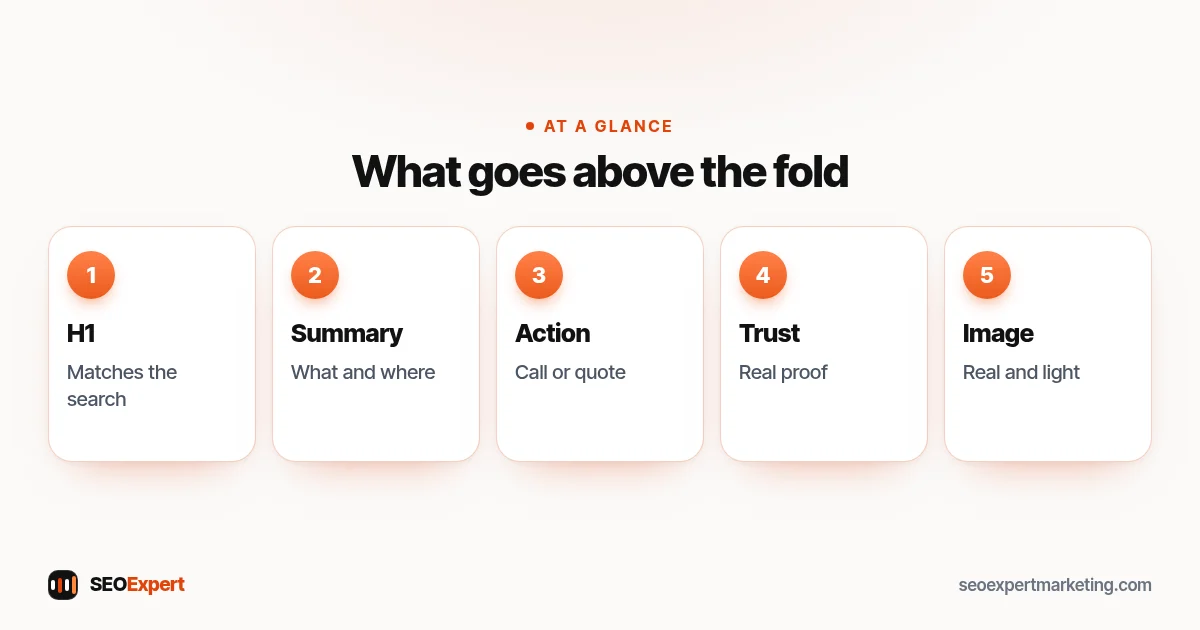
- A clear H1 that matches the search. If someone searched "emergency plumber Leeds", the first thing they read should confirm it: "Emergency Plumber in Leeds". Our guide to HTML tags for SEO explains headings.
- One sentence that says what you do and for whom. Plain words, not slogans: "Burst pipes, leaks and boiler breakdowns fixed across Leeds, 7 days a week."
- The main action. A call button on phones and a quote or booking button on all screens. One main action works better than five.
- A trust signal you can back up. For example your real Google rating with a link to the reviews, a trade registration, or "family business since 2009" if it's true.
- A useful image, if it helps. A real photo of your team, van or work. Keep it compressed and sized so it doesn't push the text out of view.
What to keep out of the first screen
- Big sliders and carousels. They often load several large images at the top, and the message keeps changing, so visitors can miss the one that matters.
- Full-screen pop-ups. Google's guidance warns against intrusive interstitials. Newsletter boxes that cover the content as soon as the page opens annoy visitors, and Google says intrusive dialogs make content hard for search engines to understand, which may lead to poor search performance. Legally required ones, such as an age check, are exempt; for anything else, use a small banner instead.
- Too many ads. Google's 2012 update targeted pages whose first screen was mostly ads, and its page experience guidance still asks you to avoid ads that distract from the main content.
- A giant image with no words. A beautiful photo that fills a phone screen says nothing about the search.
- Autoplay video with sound. Heavy to load and off-putting.
- Vague slogans. "Excellence in every detail" tells visitors and search engines nothing.
Make the top of the page load fast
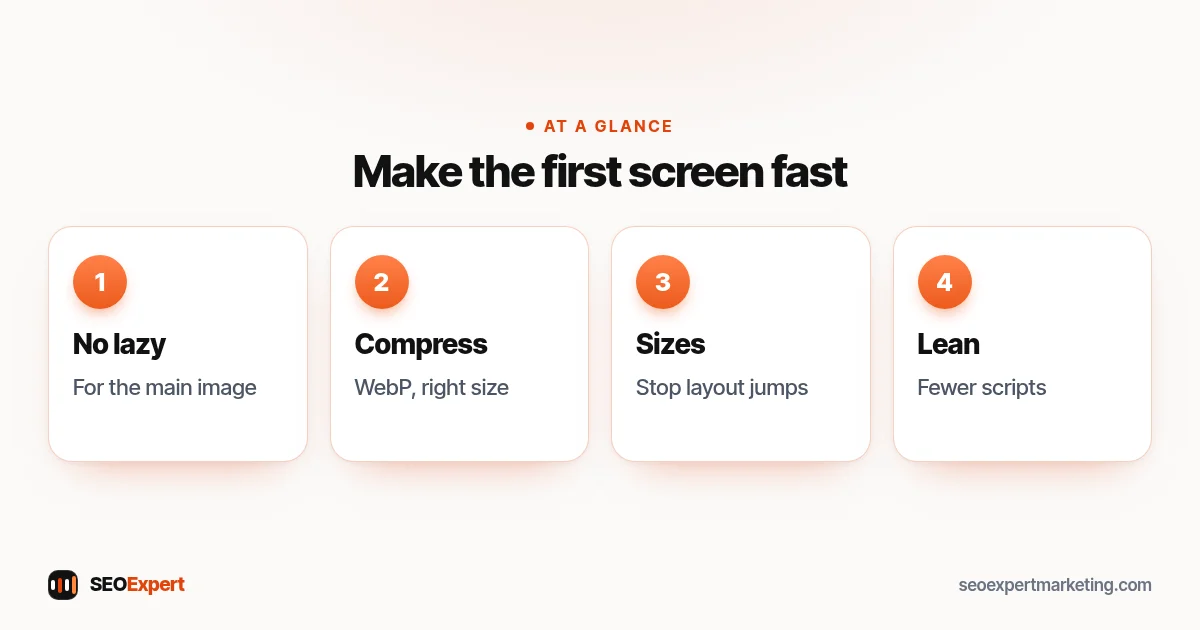
- Don't lazy-load the main image. Lazy loading is great for images further down the page, but Google's web.dev guide to optimizing LCP warns never to lazy-load your LCP image, because it always delays it. Speed plugins and website builders often lazy-load every image, so check their settings and leave the top image out. You can also add fetchpriority="high" to that one image so it loads sooner, but not to more than one or two images.
- Compress and resize the hero image. Use WebP and serve smaller files to phones. See our image SEO guide.
- Set image width and height so the text doesn't jump around as images load. Google measures this jumping as Cumulative Layout Shift (CLS), another Core Web Vital, and setting image sizes helps keep it low.
- Keep fonts and scripts lean. Every extra plugin, chat widget or tracking script can delay what appears first.
- Test on a real phone using mobile data, not just office Wi-Fi. Our mobile SEO guide covers more.
The first screen for different page types
- Home page: who you are, what you do, where you work and the main way to get in touch. Visitors arriving from a search for your business name want the phone number and opening hours fast.
- Service pages: the service name as people search it, the area, a short promise you can keep (such as "same-week appointments"), a price range or "free quote" note if that's what people ask first, and a quote or call button.
- Location pages: the town or district in the heading, proof you really work there, such as a local job photo, and the contact button.
- Blog posts and guides: the title and a direct answer in the first paragraph. Readers looking for an answer don't want a long introduction first. A small link to the related service can sit just below.
- Product pages: product name, price, main photo, stock status and the buy button.
Calls to action that work at the top
The first button visitors see should match what most of them want to do. For an emergency trade, that's calling. For a dentist, it's booking. For a web designer, it's asking for a quote. Use plain labels such as "Call now", "Book online" or "Get a free quote", not "Submit" or "Learn more". A second, quieter link such as "See prices" can help people who aren't ready yet. Keep the button large enough to tap on a phone, with enough space around it so visitors don't tap the wrong thing.
Accessibility at the top of the page
The opening section is also the first thing screen reader users and keyboard users meet. Use a real heading tag for the main heading rather than text inside an image, give the hero image short, accurate alt text, make sure text has enough contrast against any background photo, and check that the menu and main button can be reached with the keyboard. These steps help everyone, and they make the page easier for search engines to understand too.
Above the fold on mobile vs desktop
| Phone | Desktop | |
|---|---|---|
| Space | Very small: heading, a line and a button | More room for an image, a short list and a form |
| Main action | Tap-to-call button | Quote form or phone number |
| Images | Small or below the heading | Can sit beside the text |
| Menus | Collapsed, so content shows first | Visible, but simple |
Check both. A design that looks balanced on a big screen often hides the heading and button below a huge image on a phone.
Myth: everything important must be above the fold
People do scroll, especially on phones. You don't need to squeeze your whole page into the first screen; that usually makes it cluttered. The job of the first screen is to confirm the visitor is in the right place, show the main action and make them want to keep reading. Details, full price lists, FAQs and more proof can follow below, as long as the start is clear.
How to check your above the fold area
- The five-second test. Show the page on a phone to someone for five seconds, then ask what the business does, where and how to contact it. If they can't say, the top needs work.
- PageSpeed Insights. Run your page and look at the LCP element it names: is it your hero image or heading, and does it load quickly?
- Search Console. The Core Web Vitals report shows groups of pages with slow or unstable loading, based on real Chrome visitors. Many small sites see "No data available" because they don't get enough visits yet; if so, use PageSpeed Insights instead. See our Google Search Console guide.
- Look at your top landing pages first. The pages that get the most search visitors matter most.
Example: a plumber's home page
A plumber's home page opens with a full-screen slider of three stock photos and the slogan "Quality you can trust". On a phone, the phone number and the word "plumber" only appear after two scrolls, and the slider makes the page slow. The fix: replace the slider with one real photo of the team, add the H1 "Plumber in Leeds: Leaks, Boilers and Emergencies", a one-line summary with the areas covered, a tap-to-call button and a link to their real Google reviews. The same message now fits on the first phone screen, and the page loads faster because one compressed image replaced three large ones.
Common above the fold mistakes
- The H1 is missing, hidden in a slider or says something vague.
- The phone number is only in the footer.
- A pop-up appears before the visitor sees anything.
- The main image is lazy-loaded or several megabytes in size.
- Cookie banners or chat widgets cover the button on phones.
- Different pages all open with the same generic banner, so nothing above the fold matches the search.
For the other basics, see our one-page SEO cheat sheet.
Want a second pair of eyes on your pages?
Our SEO services include a check of the first screen on your main pages, on phones and computers, with clear fixes for headings, speed and calls to action. To start, ask for a free website analysis.
Above the fold: quick answers
What does above the fold mean in SEO?
Above the fold is the part of a web page visible before scrolling. In SEO it matters because visitors and Google both care whether the main content is easy to see and quick to load.
Does Google penalize content below the fold?
No. Content below the fold is crawled and can rank. Google's 2012 page layout update targeted pages with little visible content at the top or with most of the first screen given to ads, not normal pages that people scroll.
What should be above the fold on a service page?
A clear heading that matches the search, one sentence on what you do and where, the main action such as a call or quote button, and a trust signal you can back up.
Is above the fold the same on mobile?
No. A phone shows much less, often just a heading, a line of text and a button. Design and test the phone view first.
Should I lazy-load images above the fold?
No. Google's web.dev guidance says never to lazy-load your LCP image, which is usually the main image at the top of the page.
Are pop-ups bad for SEO?
Pop-ups that cover the content when the page opens are intrusive interstitials, which Google's page experience guidance asks you to avoid. Legally required ones, such as an age check, are exempt; for anything else, use a small banner.
