
Google Business Profile verification proves to Google that you own or manage a real business at the details you've given. Until your profile is verified, you can't fully manage it, and it may not show in Google Search and Maps the way you want. Verification can be quick, but it often trips people up: the method offered varies, video checks need preparation and mistakes can lead to delays. This guide explains Google Business Profile verification step by step.
Why Google Business Profile verification matters
Verification protects customers and businesses from fake listings. For you, it unlocks control of your profile: editing details, replying to reviews, adding photos and posts, and seeing performance data. An unverified profile is easy for someone else to edit and doesn't give you the visibility you need.
Verification methods
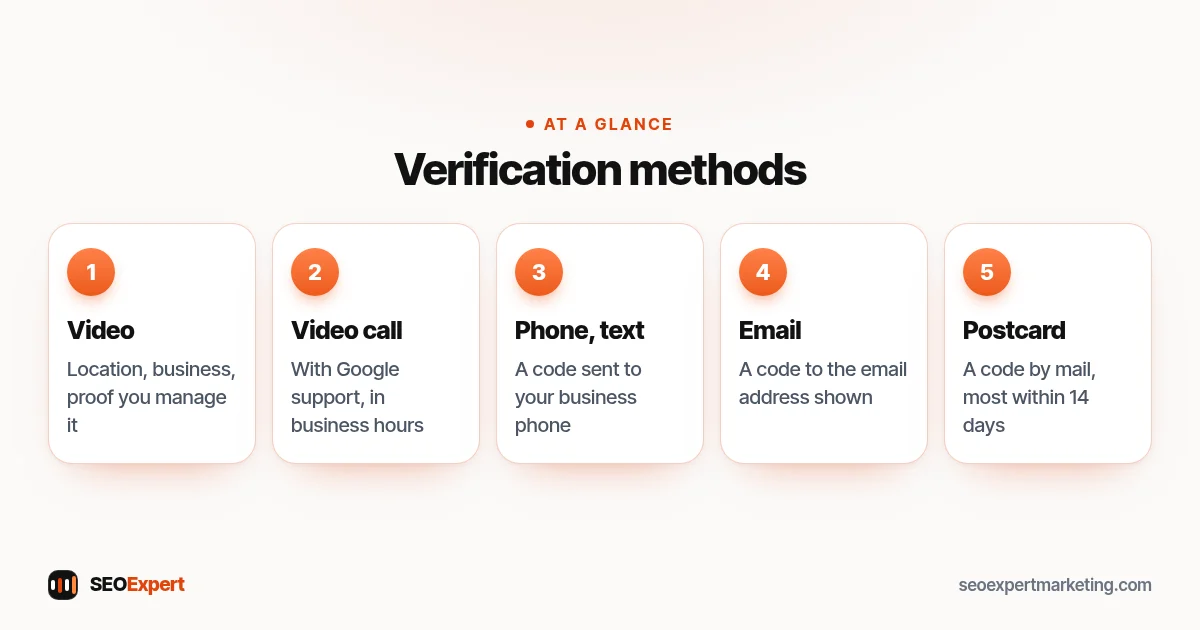
Google's help page on verifying your business on Google explains that the methods available depend on your business, and you may see more than one option. Methods include:
- Video recording: you record a short continuous video showing your location, your business and proof you manage it. Google recommends this option when your business is eligible.
- Live video call: a call with a Google support agent, available only during your business hours and not for every business.
- Phone or text: a code sent to your business phone number.
- Email: a code sent to an email address shown on the verification screen.
- Postcard by mail: a code sent to your business address. Google says most codes arrive within 14 days and that codes expire after 30 days.
The Google Business Profile verification methods you may be offered, at a glance:
Google Business Profile verification in 5 steps
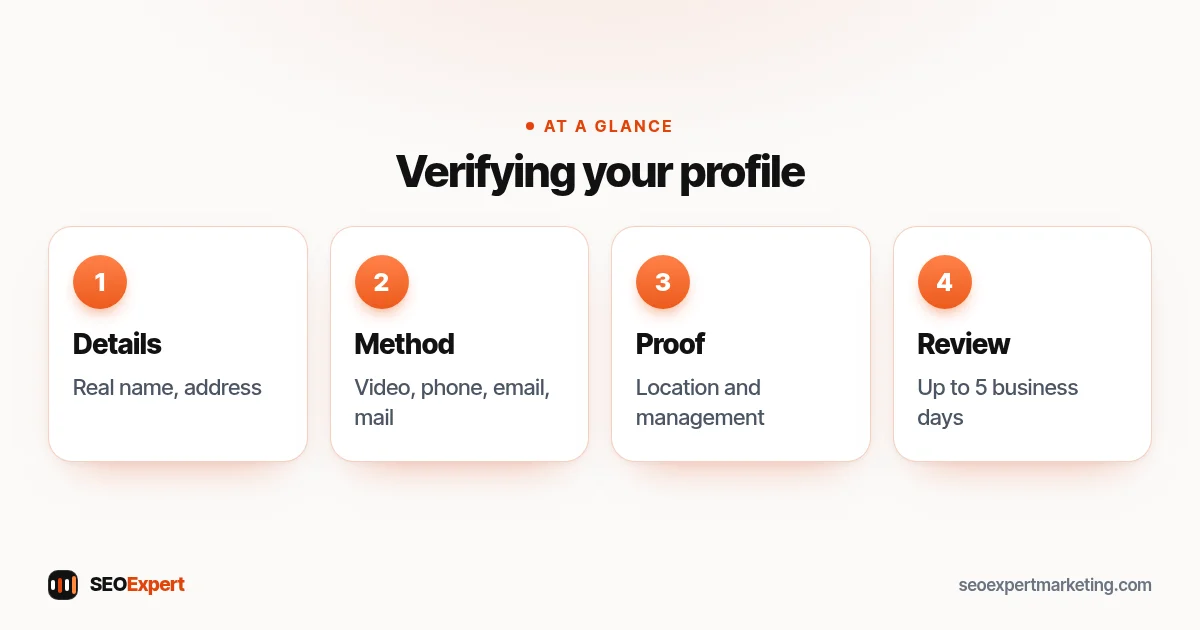
Step 1: Get your details right first
Before you request verification, check the business name, address or service area, phone number, categories and website. Use your real-world business name with no added keywords, as Google's guidelines require. Changing details during verification can cause delays.
Step 2: Choose the method offered
Open your profile and select Get verified. Choose from the options shown. If a method doesn't work, Google's help page notes that you can try other verification methods when several are available.
Step 3: Prepare for video verification
For video, plan a single continuous recording that shows, in order: the outside of the business with signs or nearby landmarks to confirm the location, the inside or your equipment, such as a branded vehicle or tools, and proof that you manage the business, such as opening the till, a staff area or business documents. Keep it short and steady, and record in good light.
Step 4: Complete and wait for review
After you submit your video or enter your code, Google reviews the information. Its help page says to wait up to five business days to be verified after completing the steps. Don't create a second profile while you wait.
Step 5: Finish your profile
Once verified, complete every relevant section: hours, services, photos, description and attributes. Our local SEO checklist and our guide to Google Business Profile categories show what to prioritize.
Service-area businesses
If you visit customers and don't serve them at your address, you can still verify. Hide your address after verification and set your service areas, as explained in our guide to service area business SEO. Your video should still show real proof of the business, such as your branded van, equipment and tools.
If Google Business Profile verification fails
- Check that your details match real-world signage, documents and your website.
- Remove keywords from the business name.
- Make sure the address is a real location where you operate, not a virtual office or mailbox.
- Re-record video verification with clearer proof of location and management.
- Try another method if one is offered.
- Contact Google Business Profile support through the help center if you're still stuck.
Re-verification after changes
Verification isn't always a one-time event. Google may ask you to verify again after significant changes, such as a new business name, a new address or a change of primary category, or if it has questions about the profile. Plan big changes carefully, make them together where it makes sense rather than one after another, and keep your evidence ready: signage, utility bills or business documents, and photos of the premises.
Managers and access
Once your profile is verified, add other people as managers instead of sharing your Google login. That includes staff who reply to reviews and any agency that helps you. You stay the owner and can remove access at any time. If a former employee or agency set up the profile and still owns it, you can request ownership through Google's process rather than creating a new profile, which would cause duplicates and another round of Google Business Profile verification.
Preparing your evidence in advance
Before you start Google Business Profile verification, gather what you might need to show: a clear view of your signage or branded vehicle, the street name or a nearby landmark, the tools or equipment of your trade and something only the manager can access, such as a locked office, the till or business paperwork. Having this ready means one smooth recording instead of several failed attempts.
Video verification tips
Most failed video attempts miss one of three things: proof of location, proof of the business and proof of management. Start outside, showing the street sign or a nearby landmark and your business signage. Then show the inside, your equipment or your branded vehicle. Finally, show something only an owner or manager could access. Record in one continuous take without editing, in good light, holding the phone steady. A clear, unhurried recording gets Google Business Profile verification done faster than several rushed ones. It's worth doing a practice run first, without submitting, to check the route from the street to the inside makes sense and nothing important is missed.
Avoiding suspensions
Most suspensions come from details that break Google's guidelines: keyword-stuffed names, virtual office addresses, duplicate profiles or categories that don't match the business. Keep everything accurate, avoid repeated major edits and follow Google's guidelines for representing your business.
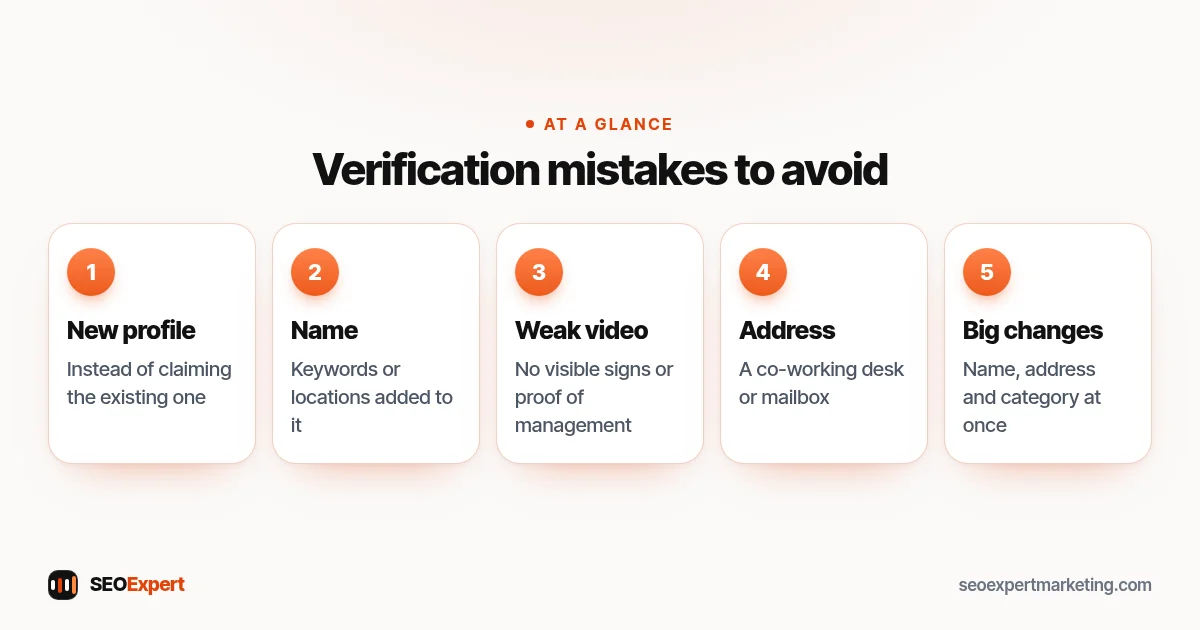
Common Google Business Profile verification mistakes
- Creating a new profile instead of claiming an existing one.
- Adding keywords or locations to the business name.
- Recording video verification with no visible signs or proof of management.
- Using a co-working desk or mailbox as the address.
- Making big changes to name, address and category at the same time.
Five Google Business Profile verification mistakes to avoid:
Need help?
Our one-time Google Business Profile setup, $99, covers setting up or claiming the profile, preparing for verification and completing it properly. It's also part of our Google Business Profile optimization. Send us your business name on WhatsApp for a free review.
Profile verification: quick answers
How long does Google Business Profile verification take?
It depends on the method. After you complete the steps, Google says to wait up to five business days for review. Postcard codes usually arrive within 14 days.
Why does Google ask for video verification?
Video shows that the business is real, at the location given and managed by you. Google recommends it when your business is eligible.
Can I verify without a shopfront?
Yes. Service-area businesses can verify and then hide their address, showing proof such as branded vehicles, tools and documents.
What if my verification keeps failing?
Check that your details match real-world signage and documents, remove keywords from the name, try another method if offered or contact support.
