
A business with multiple locations has a bigger opportunity in local search than a single-site business, and a bigger risk of getting things wrong. Each branch, office or base can appear in Google Maps and local results for its own area, but only if each one is set up correctly and has its own useful page. This guide explains how to do local SEO for multiple locations in seven practical steps, within Google's guidelines.
What counts as a location?
Google's guidelines for representing your business say you shouldn't create more than one profile for each location of your business. A location is a real place where you serve customers in person during stated hours, or, for service businesses, a base with its own service area and its own staff. A virtual office, a mailbox or a desk you rent to appear in another town doesn't count, and Google's guidelines don't allow it.
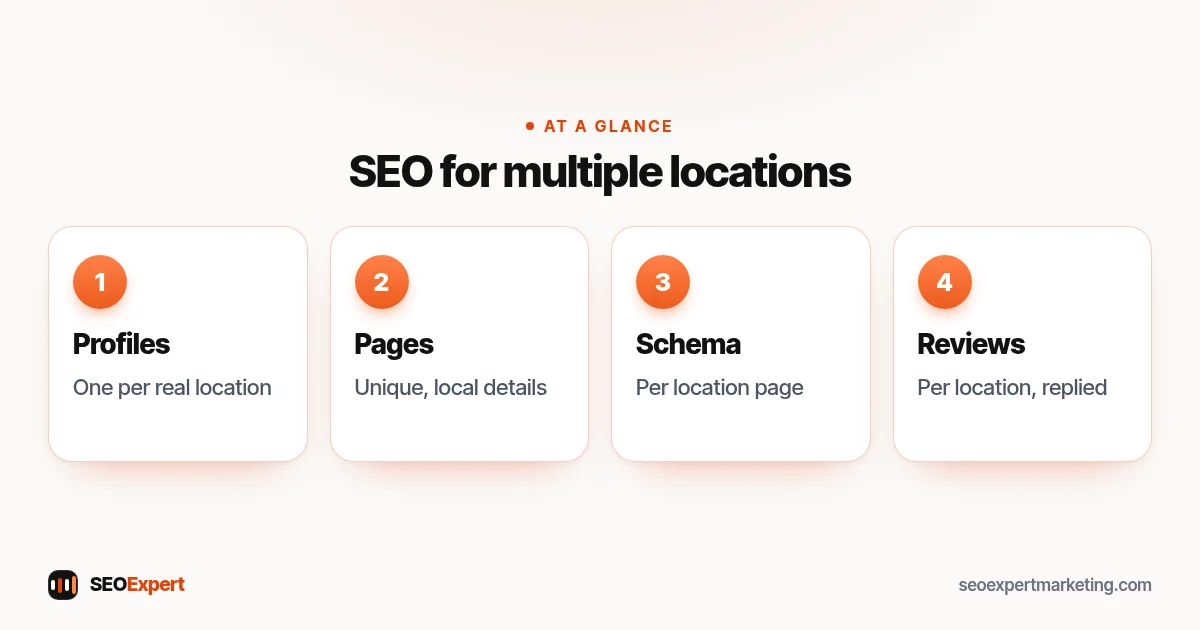
Step 1: One Business Profile per real location
Create or claim a separate Google Business Profile for each eligible location, with the same brand name, the correct address or service area, a local phone number if possible and accurate hours for that location. If you have ten or more locations of the same business, Google offers bulk verification, which can save time.
Step 2: A dedicated page for each location
Each location needs its own page on your website, linked from that location's Business Profile. A good location page includes the address, map, phone number, opening hours, the services offered at that location, the team, parking or access details, photos of the premises and reviews or examples of local work. It should help someone choosing between your branches.
Step 3: Make every location page genuinely different
The biggest mistake businesses with multiple locations make is copying one page and swapping the town name. Those pages are thin and can be treated as doorway pages under Google's spam policies. Write each page around what's actually different: staff, services, opening hours, local landmarks, local projects, parking, languages spoken or prices.
Step 4: Build a clear location structure
Create a locations hub page that lists every location with a short summary and link. Link each location page from the hub and from relevant service pages. Keep addresses simple and consistent, for example /locations/leeds/ and /locations/york/. Our guide to URL SEO explains how to choose clear addresses.
Step 5: Add structured data for each location
On each location page, add LocalBusiness structured data describing that location only: its name, address, phone number and hours. Google's guide to LocalBusiness structured data lists the properties. Our guide to local business schema shows how to add and test it.
Step 6: Keep listings consistent everywhere
Each location should have the same name, address and phone number on its Business Profile, its page on your website and the main directories. When a location moves, changes hours or closes, update everything together. Our guide to local SEO citations lists the directories that matter.
Step 7: Reviews and reporting per location
Ask customers at each location for reviews on that location's profile, and make sure local managers reply. Track calls, direction requests and website clicks per profile, and Search Console data per location page. Comparing locations shows which need more attention.
Service businesses with several bases
If you run a service business, such as plumbing or cleaning, from several bases, each base with its own staff and service area can have its own profile. Set realistic service areas for each and avoid overlapping them heavily. If you have one base and travel widely, you have one location: focus on strong service pages and a few helpful area pages instead. Our guide to service area business SEO covers that case.
Departments and practitioners
Google has separate rules for departments within a business, such as a car dealer's sales and service departments, and for individual practitioners, such as doctors or lawyers within a practice. These can sometimes have their own profiles. Check Google's guidelines before creating extra profiles; duplicates can be removed and may affect your main listing.
Opening a new location
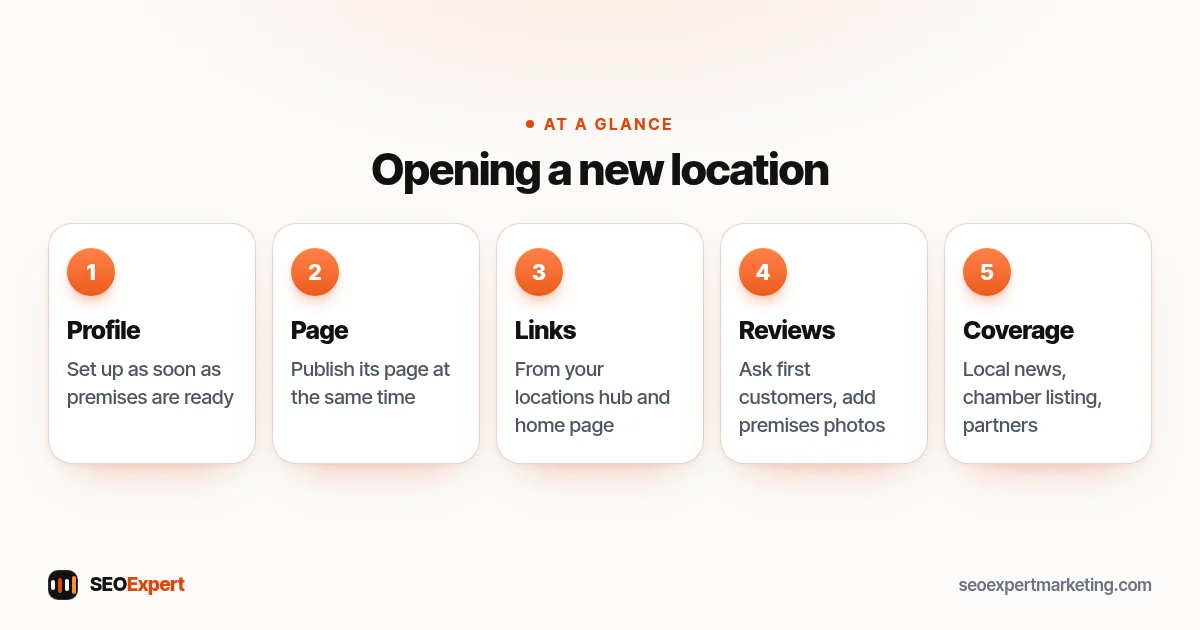
When you open a new branch, set up its Business Profile as soon as the premises are ready to receive customers, and publish its location page at the same time. Link to the new page from your locations hub and your home page, ask your first customers there for reviews and add photos of the premises. For a business with multiple locations, each launch is a chance to earn local coverage: a local news story, a chamber of commerce listing or a mention by nearby partners can all help a new branch get found sooner.
How a business with multiple locations opens a new branch:
Closing or moving a location
If a location moves, update its Business Profile address rather than creating a new profile, and update its page and listings at the same time. If it closes, mark the profile as permanently closed and redirect its location page to the nearest open branch or the locations hub, with a short note for customers. Leaving closed branches looking open frustrates customers and makes it harder to manage multiple locations well.
Reporting across multiple locations
A simple monthly table works well: one row per location, with calls, direction requests and website clicks from its profile, clicks to its page from Search Console, new reviews and the average rating. Look for branches falling behind the rest and check their profile details, reviews and page first. Businesses with multiple locations often find one or two branches drive most of the gap, and fixing those gives the quickest gains.
Brand pages vs location pages
Your home page and service pages describe the business as a whole; location pages describe each branch. Keep that split clear. Service pages can mention which locations offer each service and link to them, while location pages link back to the full service pages, so neither type tries to do the other's job.
Common mistakes with multiple locations
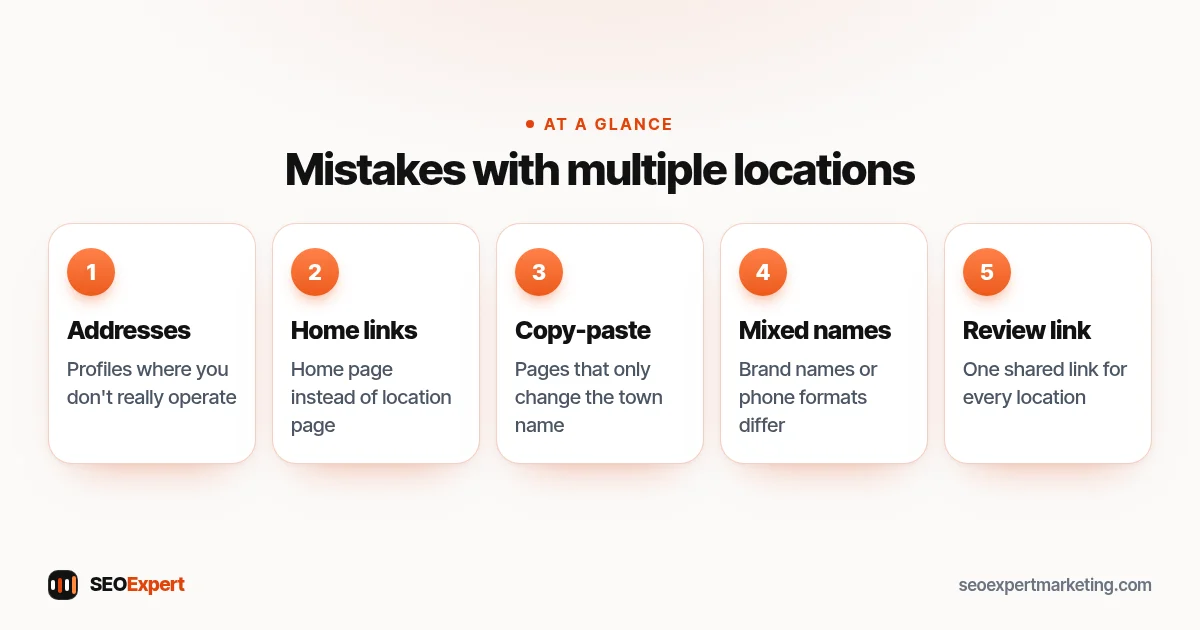
- Profiles for addresses where you don't really operate.
- All profiles linking to the home page instead of their location page.
- Copy-paste location pages that only change the town name.
- Different brand names or phone formats across locations.
- One shared review link for every location.
- Closed locations left open on Google.
Five common mistakes to avoid with multiple locations:
How we help
Our local SEO services work with businesses on WordPress and Shopify sites, and our SEO Authority plan tracks up to 30 phrases. If you have multiple locations, tell us about them and we'll say honestly whether a plan fits. Send us your locations and website on WhatsApp for a free review.
Multiple locations: quick answers
Can I have one Google Business Profile for several locations?
No. Each eligible location should have its own profile, and Google's guidelines say not to create more than one profile per location.
Do I need a separate page for each location?
Yes. Each location's profile should link to its own page with that location's details, services, team and photos.
Can I add a location in a town where I have no office?
Not as a separate profile. Virtual offices and mailboxes aren't allowed. You can describe the areas you serve from your real bases.
How do I stop location pages competing with each other?
Make each one genuinely about its own location, with distinct details, and link them from a clear locations hub.
