Adding SEO keywords in WordPress doesn't need code or a special "keywords" box. You put the words people really search for in the places that people see and Google reads: the SEO title, the URL slug, the main heading, the opening lines, the subheadings, image alt text and the meta description. This guide shows where each one lives in the WordPress block editor and in three common SEO plugins (Yoast SEO, Rank Math and All in One SEO), and how to use SEO keywords in WordPress without stuffing them.

Before you start: one main keyword per page
Before you add SEO keywords in WordPress, pick one main search for each page, plus a few natural variations. Google's SEO starter guide puts it simply: "Think about the words that a user might search for to find a piece of your content." Our guides to keyword research and choosing a target keyword cover that step.
In US Semrush data (October 2026), "how to add seo keywords in wordpress" gets about 390 searches a month, "how to put seo keywords in wordpress" about 320 and "add seo keywords to wordpress" about 320. They all want the same answer, so one page can serve them all. Google's starter guide says its "language matching systems are sophisticated and can understand how your page relates to many queries, even if you don't explicitly use the exact terms in them."
Step 1: Set your permalinks to "Post name"
Do this once, before you add any SEO keywords in WordPress. Go to Settings > Permalinks and choose "Post name", so each URL uses words instead of numbers. WordPress lists six options there, and its own permalink documentation calls pretty permalinks "SEO-friendly". With the Plain setting, you can't edit a post's URL at all.
If your site is already live with another structure, be careful: changing it changes every URL. The same WordPress page warns that permalinks "are permanent and should never be changed". If you must change them, set up 301 redirects from every old URL to its new one first.
Step 2: Put the keyword in the SEO title
The SEO title is the first place to put SEO keywords in WordPress: it's the text in the page's title tag, which Google often uses for the blue link in search results. In most WordPress setups, the title you type at the top of the editor becomes both the main heading and the title tag. An SEO plugin lets you set a separate SEO title, which is handy when the on-page heading should be longer or friendlier.
Put the main keyword near the start, then make the rest worth clicking. Google's starter guide says "a good title is unique to the page, clear and concise, and accurately describes the contents of the page." Its title link documentation warns against repeating words, with the example "Foobar, foo bar, foobars, foo bars". Our guide to the WordPress SEO title shows how to write one.
Step 3: Edit the URL slug
The slug is the last part of the URL, such as /wedding-cakes/. WordPress fills it in from your title, which often makes it long. To change it in the block editor, click the Settings button at the top right, stay on the Post (or Page) tab, click Slug and edit the Permalink field. Keep it short, with the main keyword and no filler words.
Don't expect miracles from the slug alone. Google's starter guide says keywords "in the name of the domain (or URL path) alone have hardly any effect beyond appearing in breadcrumbs". A clear slug mainly helps people understand the link before they click. WordPress redirects a published post's old slug by itself, but not a page's, so add a redirect before changing a ranking page's slug; our guide to URL SEO explains the rules.
Step 4: Use it in the main heading and opening lines
WordPress's own heading documentation says that "in most cases, the page title is used as the <h1> tag", although this can vary with your theme. So the title you type at the top of the editor is usually your main heading: make sure it contains the main keyword or a close variation. On page builders that hide the theme's title, set one heading to H1; in Elementor, that's the Heading widget's HTML Tag setting.
Then say what the page is about in the first two or three sentences. A visitor who lands from a search should know at once that they're in the right place; write the opening for them and the keyword usually appears on its own.
Step 5: Add subheadings with natural variations
Use the Heading block for each section: type ## and a space to start an H2, or pick the level in the block's settings. Google's starter guide recommends headings "to help users navigate your pages" and adds that there's "no magical, ideal amount of headings". Use your main keyword in one or two subheadings and related phrases in the rest. As the guide puts it: "If you are varying the words (writing naturally to not be repetitive), you have more chances to show up in Search simply because you are using more keywords."
Don't use headings just to make text bigger, and don't skip from H2 to H5 for looks. Headings should outline the page, so a reader scanning them understands what each section covers.
Step 6: Write image alt text
Alt text describes an image for people who can't see it, and for search engines. In the block editor, select the image and open the Content tab of the block settings, where you'll find "Alternative text". Alt text added there applies only to that post; text added in the Media Library becomes the default when you insert the image elsewhere.
Google's image guidance calls alt text "the most important attribute" for image metadata and asks you to use keywords "appropriately" without stuffing. Its own example rates a list of dog-related keywords as bad and "Dalmatian puppy playing fetch" as best. Describe what's in the photo; if one of your SEO keywords in WordPress fits naturally, use it. Google also says file names give "very light clues", so rename IMG00023.JPG to something short and descriptive before you upload. Our guide to image SEO covers the rest.
Step 7: Write the meta description in your SEO plugin
The meta description is a short summary that Google sometimes shows under your title in search results. The block editor's Excerpt field is a different thing: themes may show it on blog and archive pages, and a few, such as Hello Elementor, also output it as a meta description. To set the meta description, use the field in your SEO plugin.
Include the main keyword where it reads naturally, because searchers scan for their own words, but write it for people. Google's snippet documentation says that meta descriptions made of "long strings of keywords" are "less likely to be displayed as a snippet". Our guide on how to write meta descriptions has examples.
Step 8: Link to the page with clear anchor text
SEO keywords in WordPress also belong in the links that point to a page. When you mention a topic in another post, link to the page about it using descriptive words, not "click here". Google's starter guide says link text "tells users and Google something about the page you're linking to." Add two or three links from related posts to every new page; our guide to internal linking shows how to choose them.
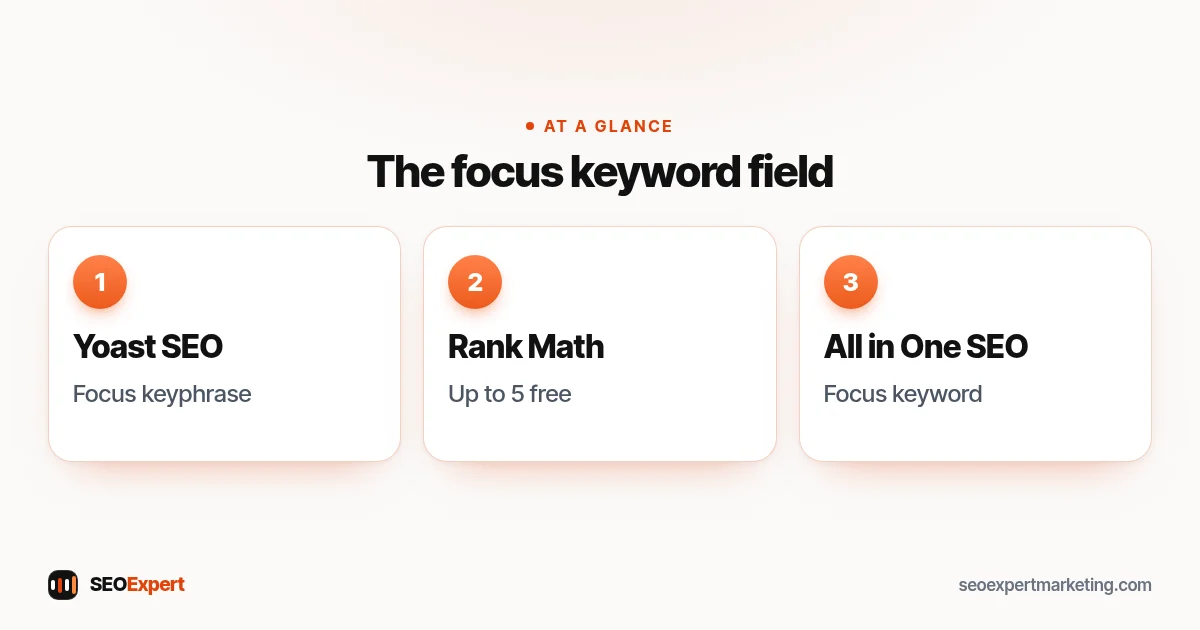
Where the keyword field is in Yoast, Rank Math and AIOSEO
| Plugin | Field name | Where to find it | More than one keyword |
|---|---|---|---|
| Yoast SEO | Focus keyphrase | Yoast SEO sidebar (Y icon, top right) or the Yoast SEO meta box below the editor | Related keyphrases with Yoast SEO Premium |
| Rank Math | Focus Keyword | General tab of the Rank Math SEO panel | Up to 5 per post free; unlimited in PRO |
| All in One SEO | Focus keyword ("Add a focus keyword") | AIOSEO Settings below the post, Optimization tab, then Keywords | "Multiple keywords is a Pro feature" |
These fields help you manage SEO keywords in WordPress, but filling one in won't rank a page on its own. Mainly, it tells the plugin which phrase to check your page against. Treat the checks as reminders, not rules. A page that reads well and answers the search beats a page rewritten to turn every light green.

The meta keywords tag: skip it
Many people searching for how to add SEO keywords in WordPress are really looking for a "keywords" box. Google doesn't use one. Its meta tags documentation says: "The meta-keyword tag is not used by Google Search, and it has no effect on indexing and ranking at all." Google stopped using it years ago, as it explained in 2009, because the tag "was so often abused".
The plugins reflect this. Yoast SEO removed its meta keywords feature in version 6.3. All in One SEO keeps the option switched off by default, says meta keywords "hold no value in today's SEO", and offers a "Use Meta Keywords" setting under Search Appearance, Advanced, mainly for sites targeting the Yandex search engine. If an old tutorial on SEO keywords in WordPress tells you to fill in a keywords field, ignore it.
Tags and categories are not SEO keywords
WordPress tags and categories organize posts for readers; they aren't a place to list SEO keywords in WordPress. Each tag creates its own archive page: WordPress's documentation says that when someone clicks a tag, "a Tag archive page with all the posts belonging to that Tag, will be displayed." Adding twenty tags to every post as "keywords" creates dozens of near-empty archive pages that compete with your real pages.
Use a handful of categories that match your main topics or services, and use tags only if they really help visitors find related posts. If you already have hundreds of one-post tags, our WordPress SEO checklist explains which archive pages to noindex.
How many times should a keyword appear?
Google gives no target number or percentage. Its starter guide warns: "Excessively repeating the same words over and over (even in variations) is tiring for users, and keyword stuffing is against Google's spam policies." The spam policies give three examples of stuffing: lists of phone numbers without substantial added value, blocks of text listing cities and regions, and repeating words or phrases "so often that it sounds unnatural".
A simple test for SEO keywords in WordPress or anywhere else: read the page aloud. If a sentence sounds like it was written for a machine, rewrite it. Plugin density warnings are a rough guide; Google's systems understand related words and phrases, so using synonyms is fine.
Example: a bakery's wedding cakes page
Here's a made-up example of SEO keywords in WordPress for one page. A small bakery in Portland wants its wedding cakes page to show up for "wedding cakes portland".
- SEO title: Wedding Cakes in Portland: Tastings, Designs and Prices
- Slug: /wedding-cakes/
- Main heading: Wedding Cakes, Baked in Portland
- Opening line: We bake wedding cakes in our Portland kitchen and deliver across the city, with tastings every Saturday.
- Subheadings: Book a tasting; Cake flavors and fillings; How much does a wedding cake cost?; Delivery and setup
- Alt text: Three-tier white wedding cake with fresh peonies on a wooden stand
- Meta description: Wedding cakes baked in Portland, with Saturday tastings, delivery and setup. See flavors, designs and price ranges, then book a tasting.
This is how SEO keywords in WordPress should look: the keyword appears where it helps, and nothing is repeated just for search engines.
Common mistakes with SEO keywords in WordPress
- Targeting the same keyword on two pages, so they compete with each other.
- Changing slugs on published pages without redirects.
- Stuffing alt text with keyword lists instead of describing the image.
- Filling in a meta keywords field and expecting it to help in Google.
- Using dozens of tags as a place for SEO keywords in WordPress.
- Rewriting good sentences just to satisfy a plugin's density check.
Check that your keywords are working
Once your SEO keywords in WordPress are in place, wait a few weeks, then open the Performance report in Google Search Console, filter by the page and look at the Queries tab. It shows the searches the page really appears for, which often include phrases you never targeted. If a page shows up for a useful search but gets few clicks, improve its title and meta description; if it appears for the wrong searches, make the main heading and opening lines clearer.
Need help with SEO keywords in WordPress?
We help small businesses with WordPress SEO: choosing and placing SEO keywords in WordPress, writing titles and headings, adding internal links and making the technical fixes that a plugin can't make. See our WordPress SEO services, or ask for a free website analysis and we'll tell you where your pages stand.
SEO keywords in WordPress: quick answers
Where do I add SEO keywords in WordPress?
In the SEO title, the URL slug, the main heading, the first lines of the page, a few subheadings, image alt text and the meta description. The SEO title and meta description fields come from your SEO plugin; the rest are in the block editor.
Does WordPress have a keywords field?
Not in WordPress itself. You add SEO keywords in WordPress through normal fields such as the title, slug and headings. SEO plugins add a focus keyword field, but it mainly tells the plugin which phrase to check your page against. Google doesn't use the meta keywords tag.
Do I need an SEO plugin to add keywords?
Not to add SEO keywords in WordPress to the title, slug, headings and alt text, which are all in the block editor. A plugin such as Yoast SEO, Rank Math or All in One SEO adds the two fields WordPress lacks: a separate SEO title and a meta description.
How many keywords should one WordPress page target?
One main keyword plus a few close variations and related phrases. Rank Math allows up to 5 focus keywords per post in its free version, but most pages work best with one clear topic.
Should I use the meta keywords tag in WordPress?
No, not for Google. Google says the meta-keyword tag has no effect on indexing and ranking. Yoast SEO removed it, and All in One SEO keeps it off by default.
Do WordPress tags help SEO?
Not as keywords. Each tag creates an archive page, so many one-post tags create thin pages. Use tags only when they help readers find related posts.